
Contacts and organizations
Tuesday separates people (contacts) from organizations (accounts). Organizations are split by how you work with them: partners, end-user customers, and vendors. Each list uses the shared table controls in Tables, views, and groups.
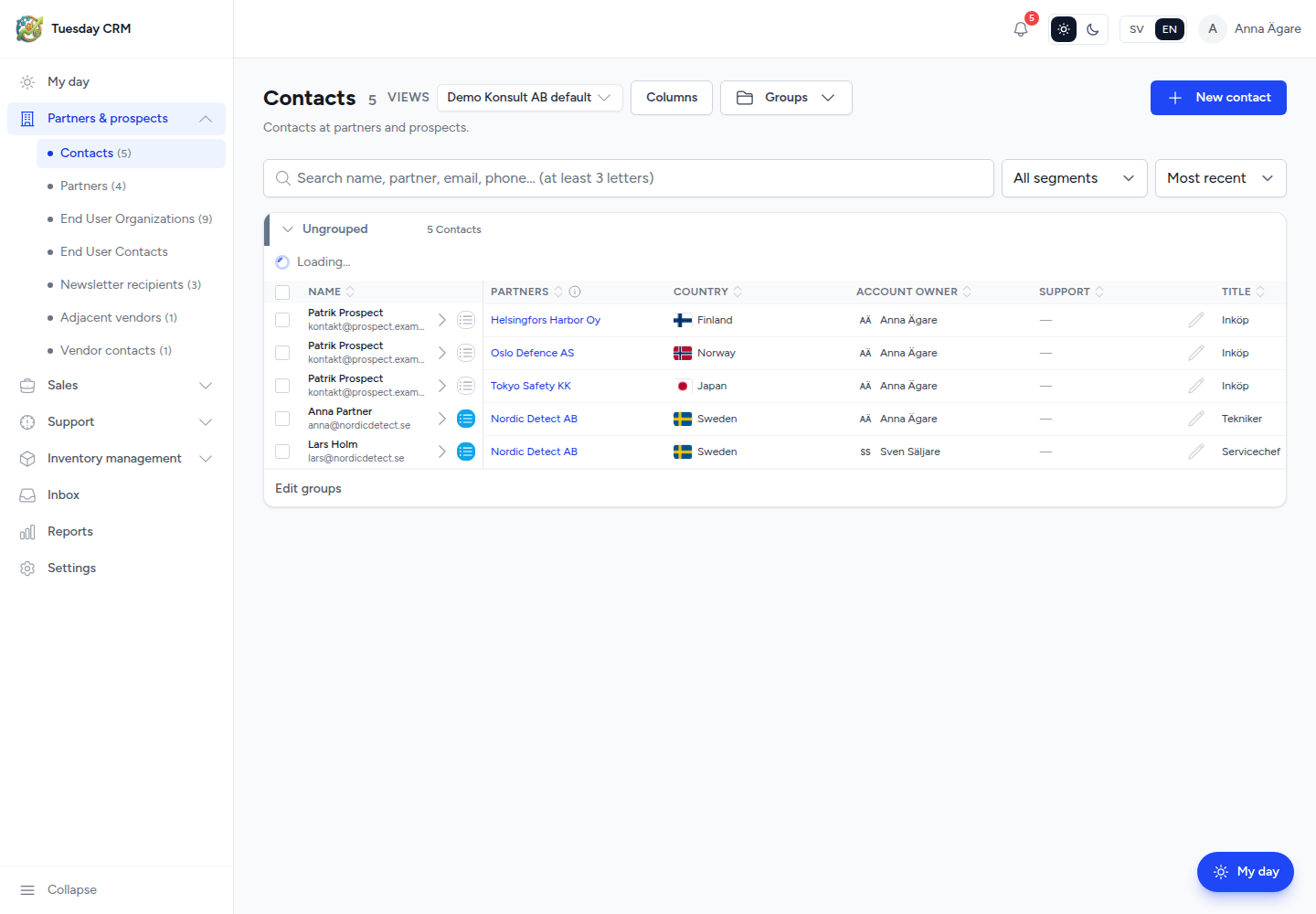
Which list to open
Under Partners & prospects (names match the English sidebar):
| Menu item | Who is on it |
|---|---|
| Contacts | People at partners and prospects |
| Partners | Reseller and partner organizations |
| End User Organizations | Prospective and current customer organizations |
| End User Contacts | People at those end-user organizations |
| Newsletter recipients | Addresses for newsletter sends |
| Adjacent vendors | Supplier / vendor organizations |
| Vendor contacts | People at those vendors |
If the Partners folder is hidden for your role, you may see a single Contacts item instead. Prospects are partner-type organizations you are still working — they are not a separate menu entry.
Create a contact or organization
- Open the list you want (for example Contacts).
- Click New contact (or the equivalent New button on that list).
- Fill the side panel: name, email, phone, organization, owner, and any custom fields.
- Save. The row appears in a group; you can move it later.
To edit later, hover a cell for one second, open the row chevron, or click the name to open the detail page.
Contact detail
Click a contact’s name.
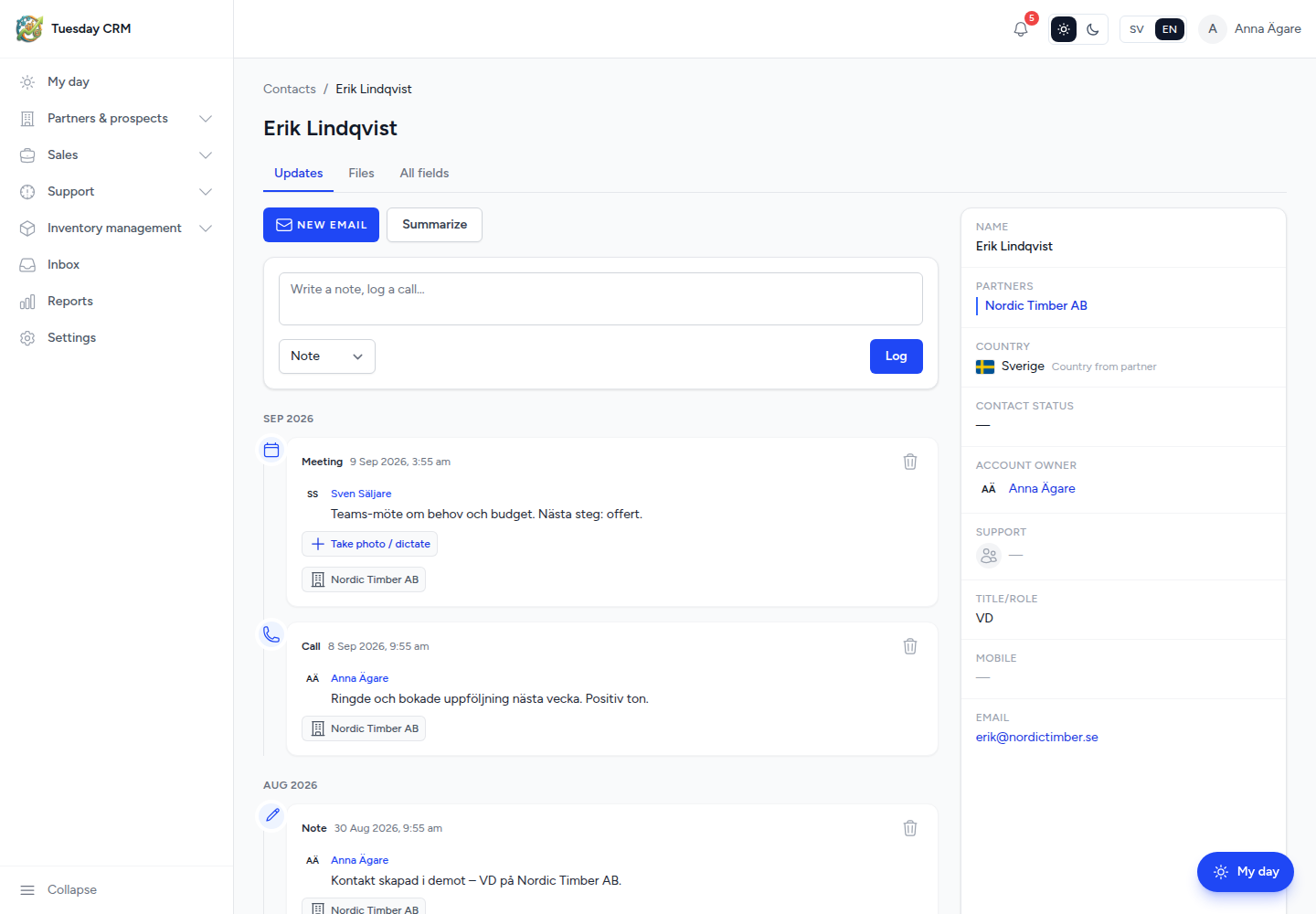
Tabs:
| Tab | Use it for |
|---|---|
| Updates | Timeline of notes, emails, tasks, and system events. This is the history of the relationship. |
| Files | Documents and uploads (when documents are enabled for your company) |
| All fields | Every field on the person, including custom fields. Changes save as you leave the field. |
The right-hand column shows related organizations, deals, and other links. Use the back control to return to the list you came from.
If Tuesday thinks two contacts are the same person, you may see Possible duplicates. Merge only when you are sure — merge cannot be undone.
Organization detail
Click a partner, end-user organization, or vendor. You get the organization profile, related contacts and deals, and the same style of timeline. Keep the legal name and address accurate; Company details is your company, not the customer’s.
Segments and custom fields
Segments (for example a market or vertical) are checkboxes that appear on contacts, partners, customers, deals, and activities. The allowed names and colors are managed only in Settings → System fields → Segments. On the list you only pick from that list.
Custom fields you add for contacts or accounts also show on the side panel, the All fields tab, and optionally as columns.
Filters that matter here
Typical filters: search by name or email, owner, tags, segment, and organization type. Click a cell (for example a tag or city) to pin that value as a chip. Save the combination as a Saved view if your list offers it.
Next: Opportunities.