
Tables, views, and groups
Most lists in Tuesday share the same layout: a title, Views / Columns / Groups, search and filters, then a grouped board of rows. Learn this once and you can use Contacts, Partners, Opportunities, Tickets, and the other boards the same way.
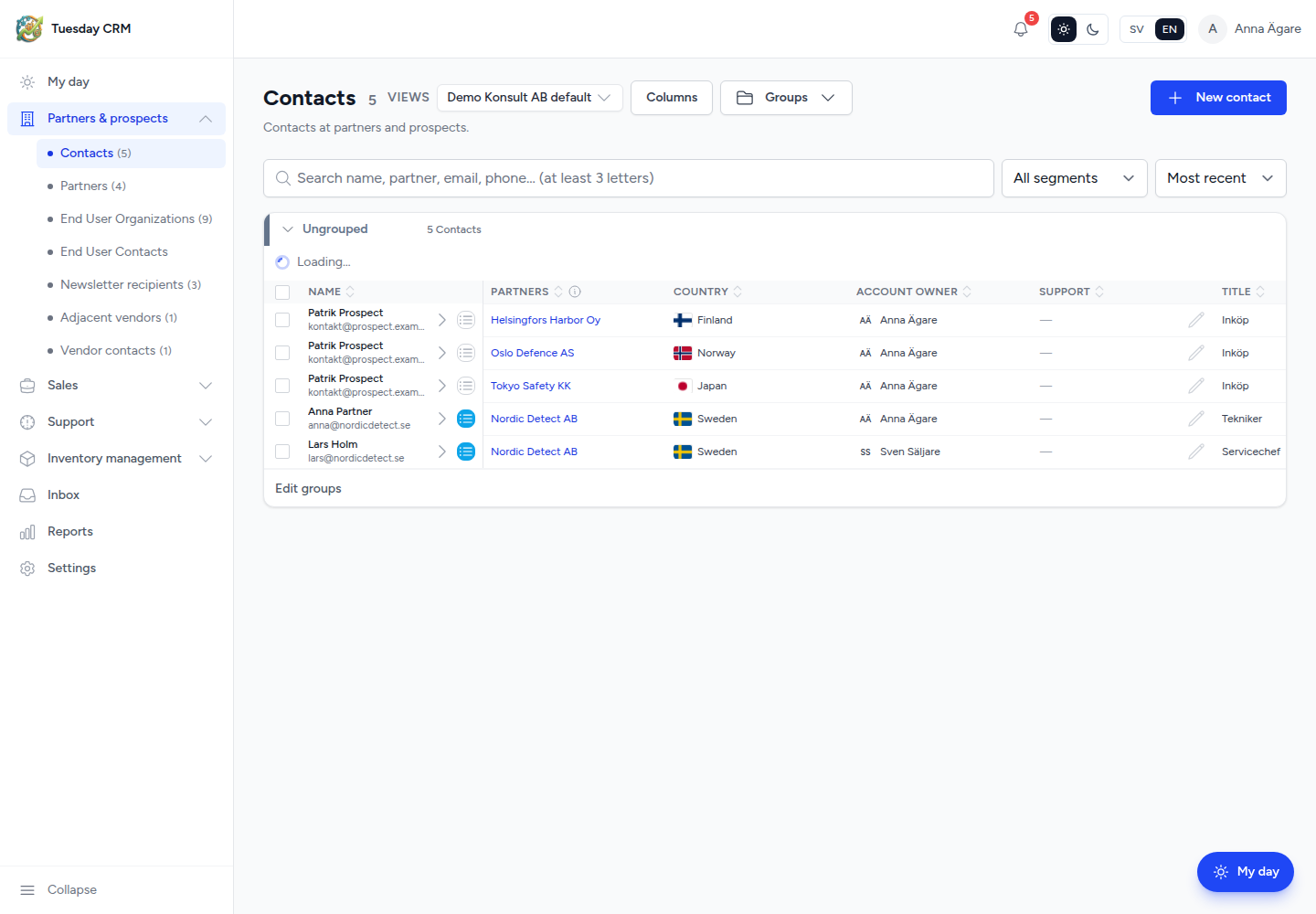
The headline
Left to right you usually see:
- Page title and a row count
- Views — saved column layouts
- Columns — show, hide, rename, and reorder columns in the current view
- Groups — colored sections that organize rows
- A short help line under the title
- Search and dropdown filters
- Filter chips when something is active
- The board (rows inside groups)
- A selection bar at the bottom when you tick rows
Views (column layouts)
Click Views.
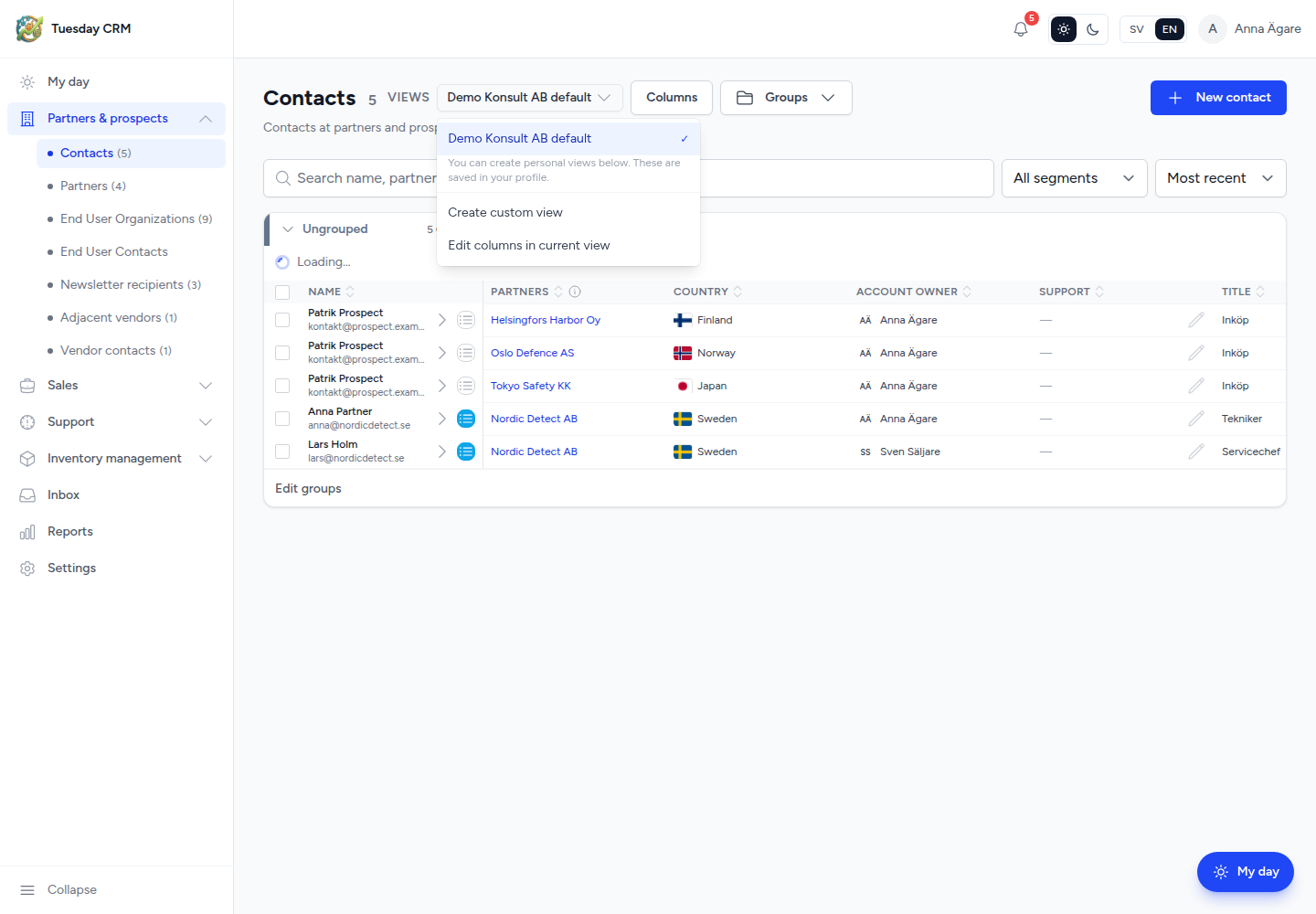
- Default View (or your company name + default) is the shared layout. Anyone can use it. Only a view admin, CEO, or Administrator can change the company default.
- My views are yours. Click Create custom view, name it (for example
Compact), and Tuesday saves the current column order and visibility on your profile. - Rename or delete a personal view from the same menu.
- Edit columns in current view opens the Columns panel for the view you are on.
A view does not store search text or filter chips. Those stay as you set them, or as a separate Saved views row on lists that support named filters.
Columns
Open Columns (or Edit columns in current view).
- The first column stays locked on the left when you scroll sideways.
- Drag the handle to reorder.
- Rename a column — the new name saves as you type.
- Add a column when you need extra data on each row.
- Toggle visibility so a field exists on the record but does not crowd the grid.
New columns you add here store extra values on the row. Company-wide field types (text, select, required, and so on) are configured in Settings → System fields.
Groups (board sections)
Click Groups.
Groups are horizontal sections with a colored header. You can jump to a group, collapse one, or (if you may edit) rename groups, change colors, drag to reorder, and add a group. Groups belong to the company, not to your personal view.
Rows live inside a group. Empty groups can be hidden. Large groups show a limited number of rows until you expand or click show more.
Groups are not pipeline stages. On Opportunities, stages live in Pipeline mode. Groups still organize the Main table.
Search and filters
- Type in Search to narrow the list (the placeholder tells you what is searched).
- Use the dropdowns under the headline (status, partner, region, priority, tags — whatever that list offers).
- Click a cell value to add it as a filter chip. The hint in the UI is: Click to filter. Hover 1 second to edit.
- Click a chip again to remove that filter.
On some lists (for example Contacts) you can save the current search and filters as a named Saved view. That is independent of the Views menu (columns).
How to edit a row
| What you want | What to do |
|---|---|
| Change one cell quickly | Hover the cell for about one second, then edit in place |
| Create a record | Click + New … (for example New contact). A side panel opens |
| Edit many fields | Click the chevron on the row to open the same side panel |
| Open the full record | Click the name (or the row link) to open the detail page |
| Work on several rows | Tick the checkboxes, then use the bar at the bottom (move group, delete, email, and other actions that list supports) |
You need write access. If a cell is read-only, hovering shows the value but does not edit it.
Detail pages and the back control
From a list, opening a contact, organization, deal, or ticket takes you to a detail page with tabs (Updates, Files, and so on). Use the back control at the top right to return to the list you came from, including its filters.
Next: My day.