
Users
Settings → Users
Invite colleagues, choose roles, decide which deals they see, and (if you are CEO or Administrator) control modules, Settings cards, dashboards, and company default views.
Invite colleagues, set roles, and choose which deals they can see. Sales and support users see their own deals by default.
CEOs and Administrators also see: CEO and Admin can set access to each part of the system for every role and every user.
Who can open this
Every non-partner role that can open Settings. The Users card cannot be hidden for those people. Partners never see Settings.
Sales and Support who are not admins can invite colleagues as sales, support, or partner. They do not see the role-access matrix or per-user gear panel.
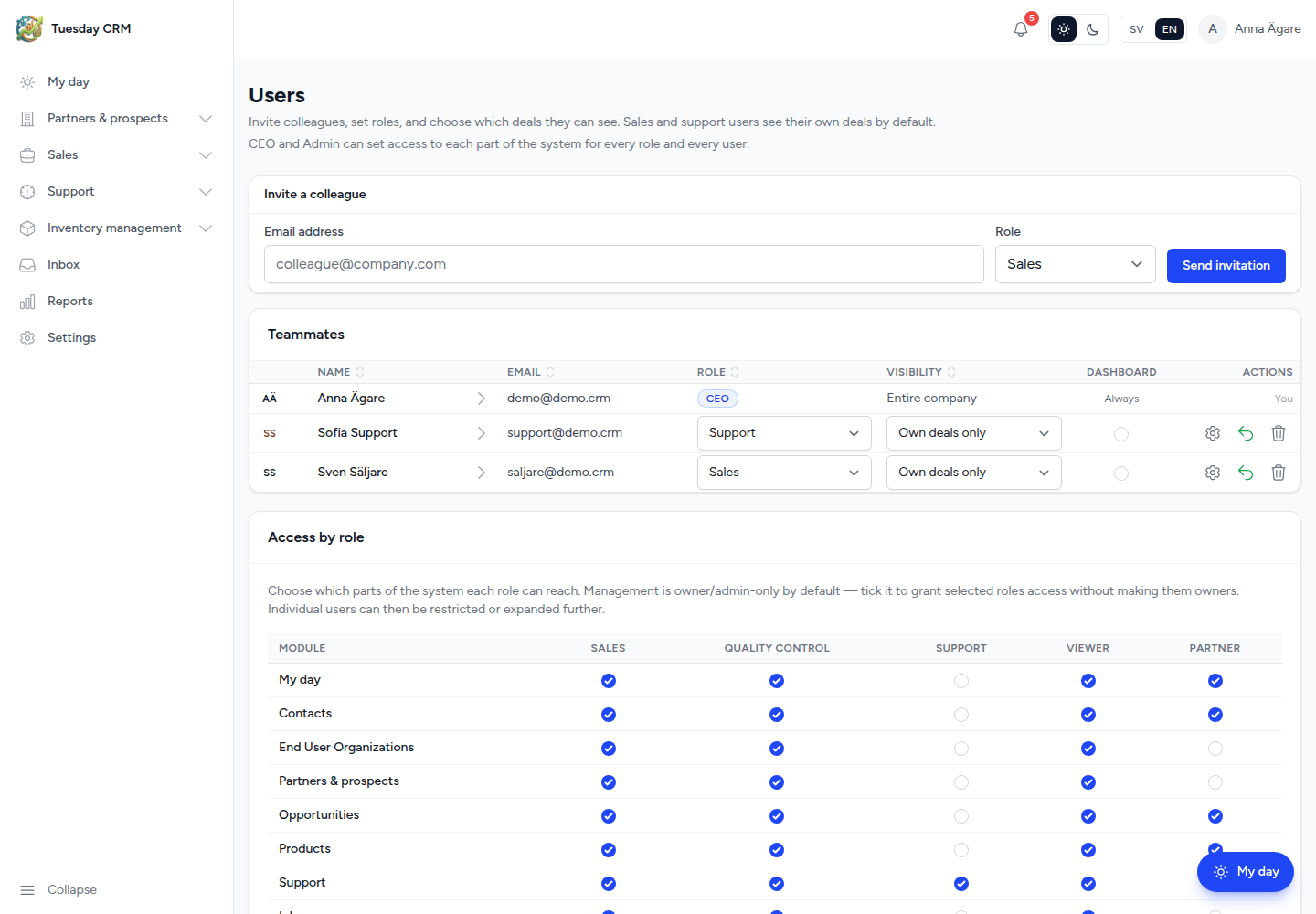
Invite a colleague
In Invite a colleague:
- Enter their work email (
colleague@company.com). - Choose a Role:
- CEO
- Administrator
- Sales
- Quality Control
- Support
- Viewer
- Partner
- If the role is Partner, choose the Partner account they belong to.
- Click Send invitation.
They receive an email with a link to set a password. Pending invites appear under Pending invitations. Revoke cancels an unused invite.
If that email already belongs to someone in the company and you are allowed to, you may see Remove and invite again.
Teammates table
Teammates lists everyone in the company:
| Column | What you can do |
|---|---|
| Name and email | See who they are; You marks your row |
| Role | Change role (you cannot assign a role you are not allowed to grant) |
| Visibility | Own deals only or Entire company |
| Dashboard checkbox | When shown: may edit selected dashboards |
| Actions | Send a password reset, open access (gear), or Remove |
Visibility defaults to Own deals only for sales and support. Switch to Entire company when someone needs the full pipeline.
Send reset link emails a password reset. Remove takes the user out of this company (Tuesday asks you to confirm). You cannot remove yourself that way, and you cannot remove the last owner of another company.
Access by role (CEO / Administrator)
Access by role is a checkbox grid: modules × roles.
- Tick a module to give that role access without making everyone a CEO.
- Management is CEO/Administrator-only until you tick it for a role.
- Click Save role access.
Individual users can then be tightened or widened in the side panel.
Per-user access (gear)
Open the gear on a teammate.
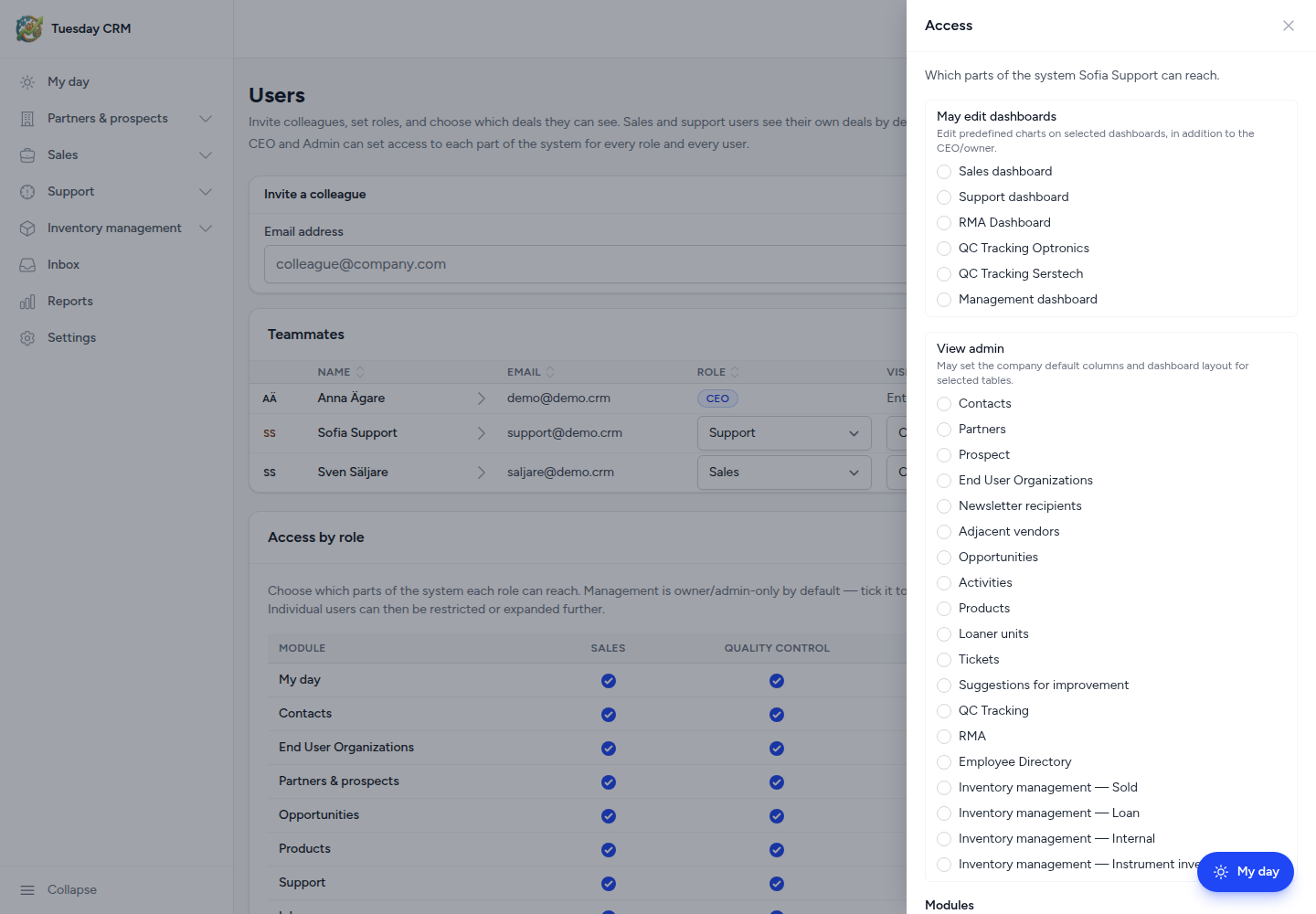
Two sections:
Modules
Which parts of the app they can open (My day, contacts, sales, support, inventory, inbox, reports, settings, management, and so on). Reset returns them to the default for their role.
Settings menu
Which Settings hub cards they see. Help in the UI:
- CEOs, administrators, and superadmins always see all items.
- Users must always be able to open Users.
- Automations is only shown if the company plan includes automations.
Reset to default clears your overrides for that person.
You can also toggle May edit dashboards and View admin here when those apply.
Dashboard editors and View admins
These grids appear for CEO / Administrator:
Dashboard editors — The CEO can always edit predefined charts. Grant May edit dashboards per dashboard (Sales, Support, RMA, QC, Management, …) to other people.
View admins — A view admin sets the company default for a table and its dashboard: columns, graph order, and which charts everyone sees. CEO and Administrator always can. Grant View admin per table to others. People without this right can still create My views (personal column layouts). See Tables, views, and groups.
Tips
- Create salespeople and account owners here before a large import, so names in the file match Tuesday users.
- Partner users should always be tied to the correct Partner account, or they will see the wrong contacts and tickets.
← Settings