
System fields
Settings → System fields
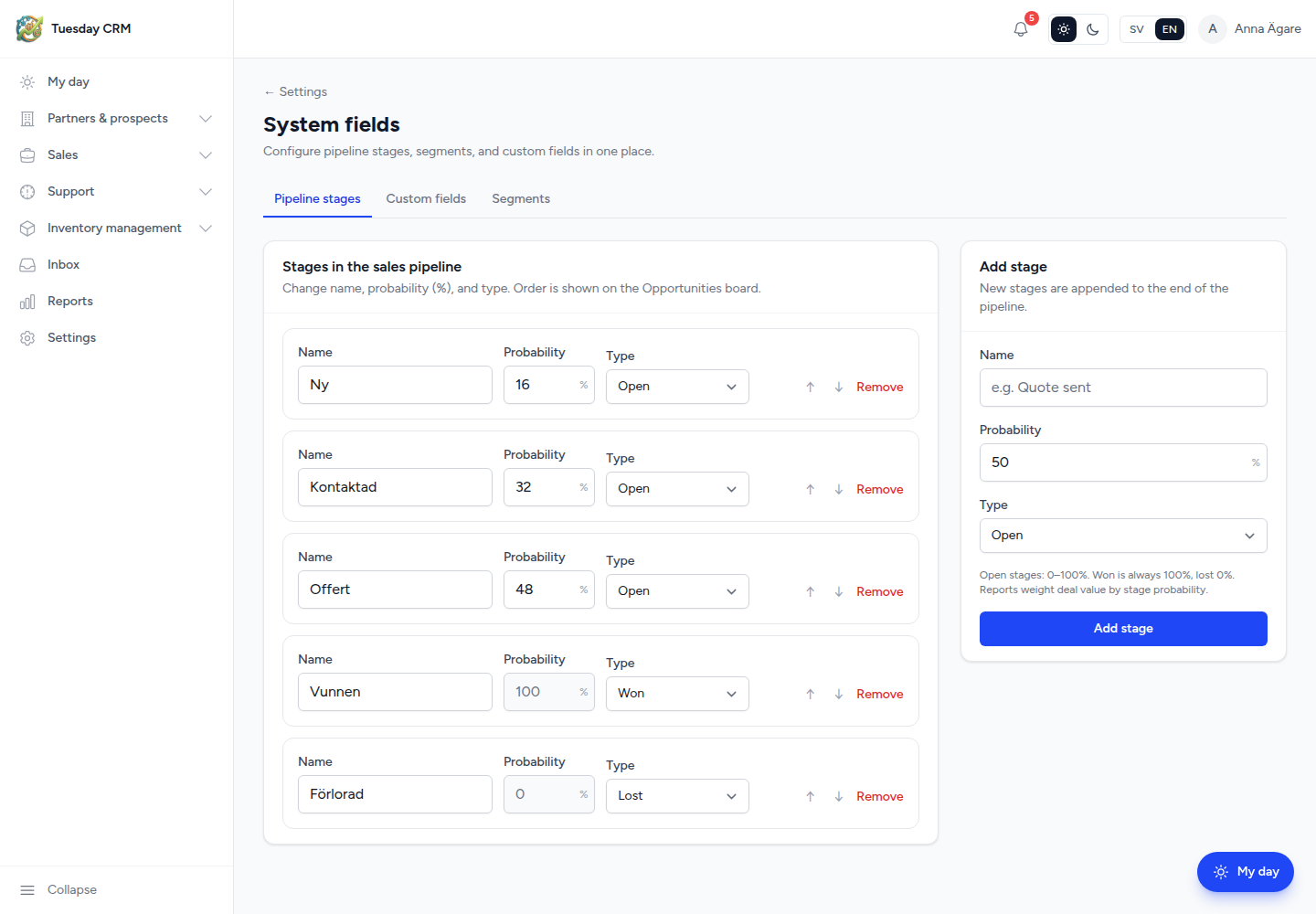
One page with three tabs: Pipeline stages, Custom fields, and Segments.
Configure pipeline stages, segments, and custom fields in one place.
Who sees which tab
| Tab | Default |
|---|---|
| Pipeline stages | CEO / Administrator |
| Custom fields | Sales and other internal roles that get the System fields card |
| Segments | CEO, Administrator, and Sales |
You only see the tabs you are allowed to use. The hub card appears if you have any of those rights.
Pipeline stages
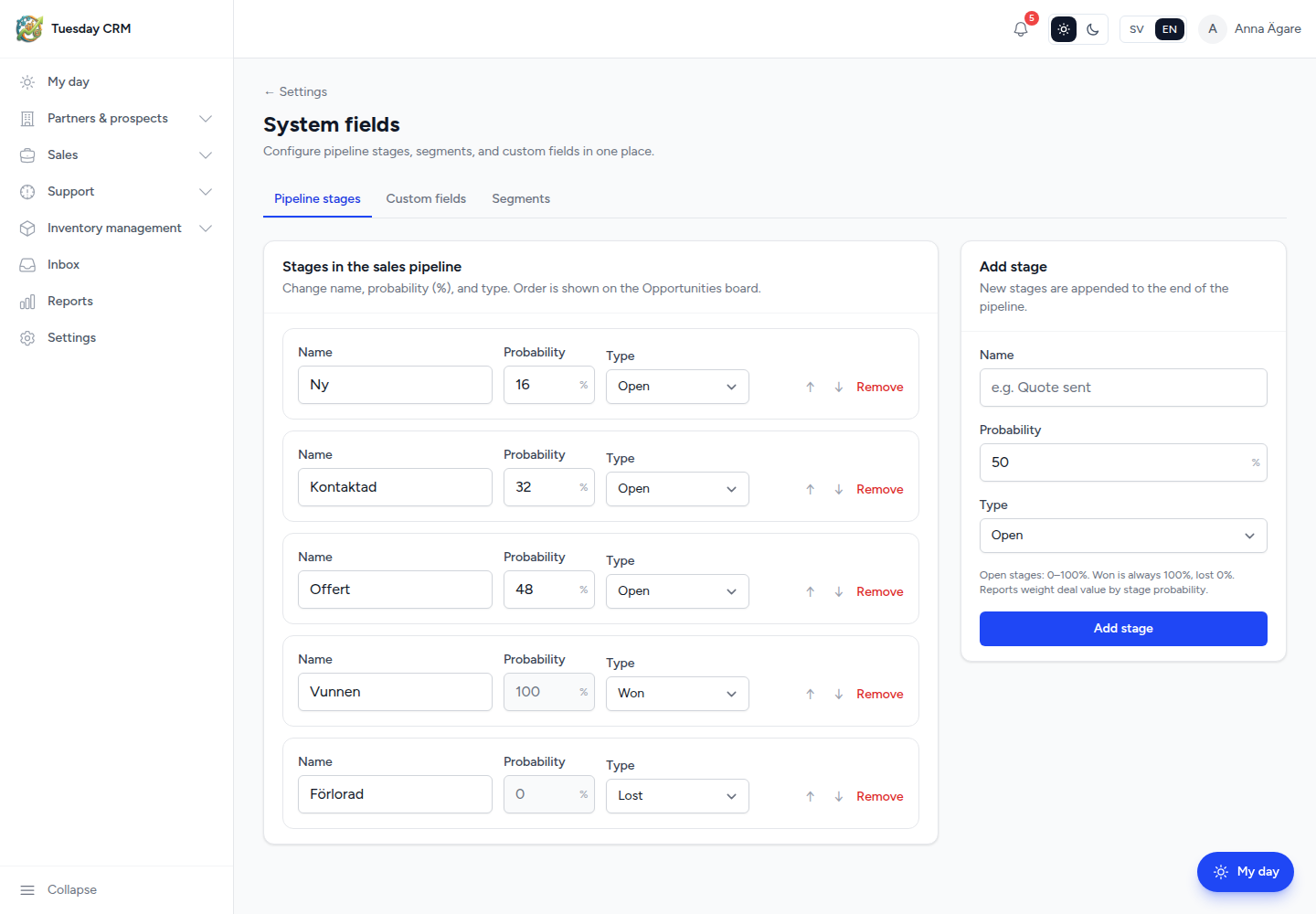
Stage names and probabilities drive the kanban board and weighted volumes in reports.
Each stage has:
- Name (for example
Quote sent) - Probability — 0–100% for open stages. Won is always 100%, lost is 0%.
- Type — open, won, or lost
- Order — Move up / Move down. This is the order of columns on Opportunities → Pipeline.
Add stage (right-hand panel) appends a stage at the end. You can delete a stage only when no deals are in it.
Reports multiply deal value by stage probability (weighted pipeline). After you rename or reorder stages, open Sales → Opportunities → Pipeline to confirm the board matches.
Custom fields
Add custom fields to contacts, accounts, and deals – without building your own data model.
- Choose the entity: contacts, accounts, or deals.
- Review the table: field name, Type, In list view (Shown / Hidden), Order.
- Under Add a custom field:
- Field name (for example
Customer number) - Type (text, number, date, select, and the other types in the menu)
- Options if the type is a list — add each choice
- Required field if the side panel must not be saved empty
- Show as column in list view if it should appear on the table
- Field name (for example
- Click Add field.
There is a maximum number of fields per entity (X of Y fields used). Delete a field you do not need before adding another. Deleting a field removes saved values.
Use Move up / Move down to control column order. Turning In list view off keeps the field on the record but hides it from the grid.
Personal Views can still hide a column for you without deleting the field.
Segments
These names appear as checkbox options on contacts, partners, prospects, customers, deals, and activities.
Segments are a shared list. Everywhere else, people can only select from this list — they cannot invent a new segment on a contact row.
For each segment:
- Name (for example
Law Enforcement) - Color (swatches; the chip preview updates)
- Order (move up / down)
Add segment on the right. New segments become selectable across the CRM immediately.
If you remove a segment, existing records keep the old value until someone edits them. They will not see that choice for new ticks.
← Settings