
Tuesday CRM user manual
Tuesday CRM is a cloud workspace for sales, support, and operations teams. It keeps partners, end-user organizations, contacts, opportunities, sales activities, support tickets, RMAs, quality control, instrument inventory, email, dashboards, and reports in one place, so you can follow a customer or a serial number from first contact to after-sales service without switching tools.
This manual covers every section of the app as it looks today. It is written for everyone who uses Tuesday: sales, support, quality control, management, and company administrators (the CEO and Administrator roles). It follows the English user interface.
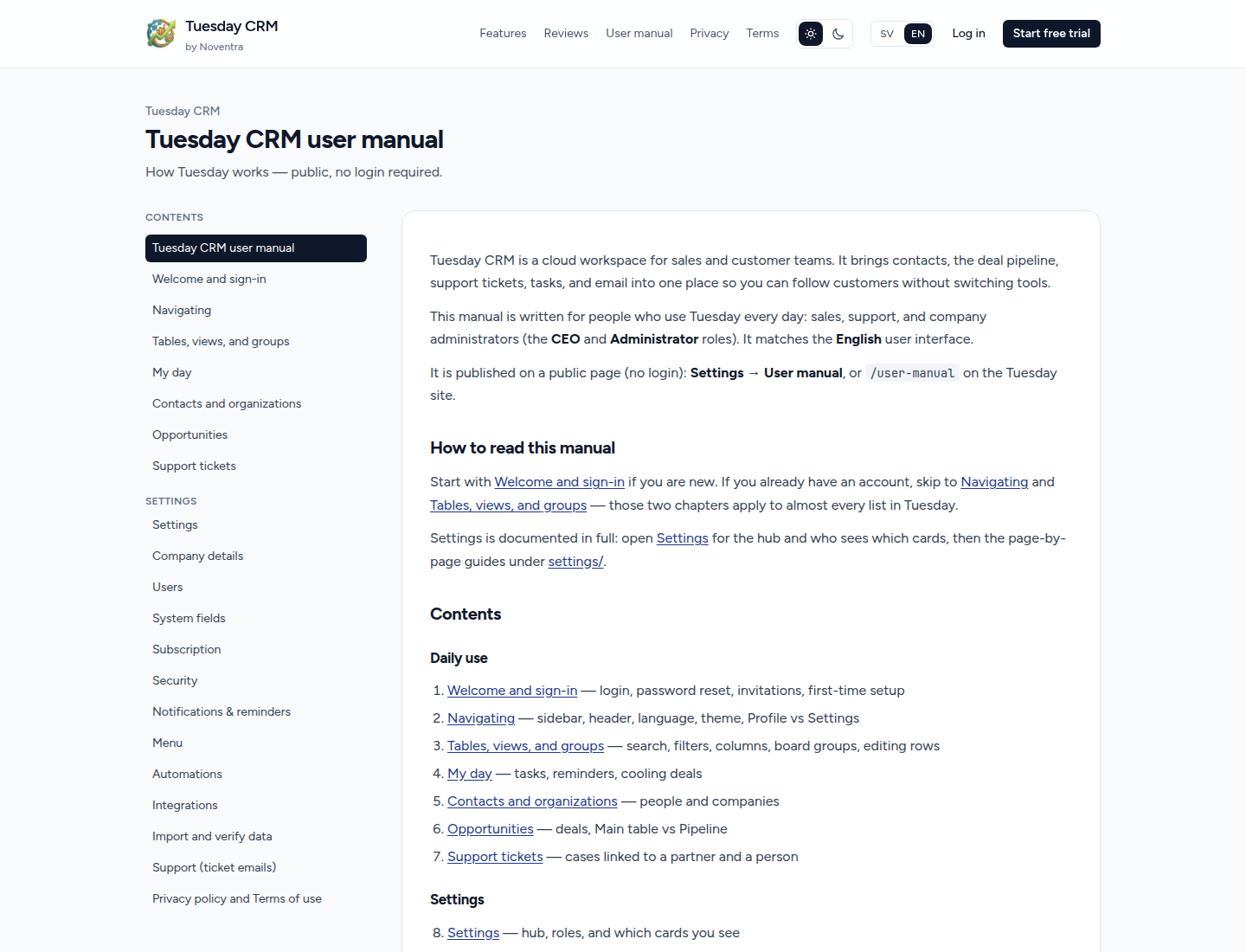
The manual is public (no login needed). Open it from Settings → User manual, from your name → User manual in the header, from the login page, or at /user-manual on the Tuesday site.
How to read this manual
If you are new, read the four Getting started chapters in order. Navigating explains the screen layout, and Tables, views, and groups explains the list controls that almost every page in Tuesday shares — Views, Columns, Groups, Alerts, Export, filters, inline editing, the selection bar, and the record editor. The module chapters after that assume you know those controls and focus on what is special about each page.
Each chapter starts with what the page is for, shows a screenshot of the real page, and then walks through every control, field, and workflow on it.
Contents
Getting started
- Welcome and sign-in — sign-in with Microsoft or Google, two-factor codes, invitations, the trial, and the owner Get started wizard
- Navigating — sidebar, header, notifications, theme, language, user menu, Profile, roles, and module access
- Tables, views, and groups — the shared list framework used across the app
- My day — your tasks, alerts, notifications, and cooling deals
- Quick capture and mobile — capture tasks, notes, photos, and dictation on a phone, also offline
Partners & prospects
- Partners & prospects — Contacts, Partners (with the 360 overview), End User Organizations, End User Contacts, Newsletter recipients, Adjacent vendors, and Vendor contacts
Sales
- Sales dashboard — the sales instrument panel, KPIs, charts, filters, and export
- Opportunities — deals in the Main table and the Pipeline board, the deal editor, BOM, won/lost
- Activities — exhibitions, demos, trainings, and other sales activities
- Products — the product and service catalog and standard BOMs
- Loaner units — serial numbers in the loaner pool
Management
- Management — Management Dashboard, custom dashboards for regions, countries, and salespeople, sales follow-up, and dashboard notes
- Probability and budgets — the probability-weighted forecast and sales budgets
- Report Generator — build your own charts and dashboards on opportunities, snapshots, and activities
Support
- Support dashboards — Support dashboard, RMA Dashboard, QC Tracking Optronics, and QC Tracking Serstech
- Tickets — support cases, statuses, the ticket editor, and email replies
- Suggestions for improvement — improvement ideas from the support team
- QC Tracking — quality control test results per serial number
- RMA — return merchandise authorizations, RMA and SR reports
- Support reports — volume, handling time, root cause, and lead time
- Employee Directory — the staff directory
- Partner support form — the public form partners use to open tickets and RMAs
Inventory management
- Inventory management — the Sold, Loan, Internal, and Instrument inventory boards
Inbox and reports
- Inbox — connected mailboxes, threads, suggested contacts, and sending email
- Reports — key metrics, standard and custom reports, sales goals, and scheduled PDF reports
Settings
- Settings — the Settings hub, who sees which card, and the page-by-page guides:
- Company details
- Users — invitations, roles, visibility, access by role, view admins, dashboard editors
- System fields — pipeline stages, custom fields, segments
- Subscription
- Security
- Notifications & reminders
- Menu
- Automations
- Integrations
- Import and verify data
- Support — ticket received emails
- Privacy policy and Terms of use
Platform administration
- Platform administration — Superadmin, Login log, Database backups, and Generate demo data (Noventra operators only)
Four ideas that save time
Views are not filters. A view stores which columns you see and in which order. Search text and filter dropdowns are separate and are not saved in a view.
Groups are not pipeline stages. Groups are the colored sections on a table (for example Active Opportunities or Open RMAs). Pipeline stages are the columns on Opportunities → Pipeline. Stage names and win probabilities are edited in Settings → System fields. Closing an opportunity as won or lost also moves it to the matching group (Business Won / Business Lost Opportunities).
Double-click to edit a cell. On every table, double-click a cell to change it in place. Use the › arrow at the start of a row to open the full record editor.
Access decides what you see. Your role and module access decide which menu items and pages you get. If something in this manual is missing on your screen, ask a CEO or Administrator to check Users.
Language and screenshots
Tuesday can be used in English or Swedish. This manual uses the English labels. Switch language with SV / EN in the header — see Navigating.
All screenshots were taken from the live application on the demo company with the interface set to English. Record names and some sample values may still be Swedish demo content — the labels of the product itself are English. Your company will see its own stage names, groups, and data.