
Opportunities
Opportunities are the deals in your sales pipeline. Open Sales → Opportunities. The subtitle reads Grouped like Sold units. Switch to pipeline to drag cards between stages.
The page has two modes. Switch between them with the Main table / Pipeline toggle above the list.
| Mode | What it is for |
|---|---|
| Main table | The shared table with Views, Columns, Groups, Alerts, and Export. Best for filtering, editing many fields, and wide data. |
| Pipeline | A board with one column per pipeline stage. Drag a card to move a deal to another stage. |
Main table
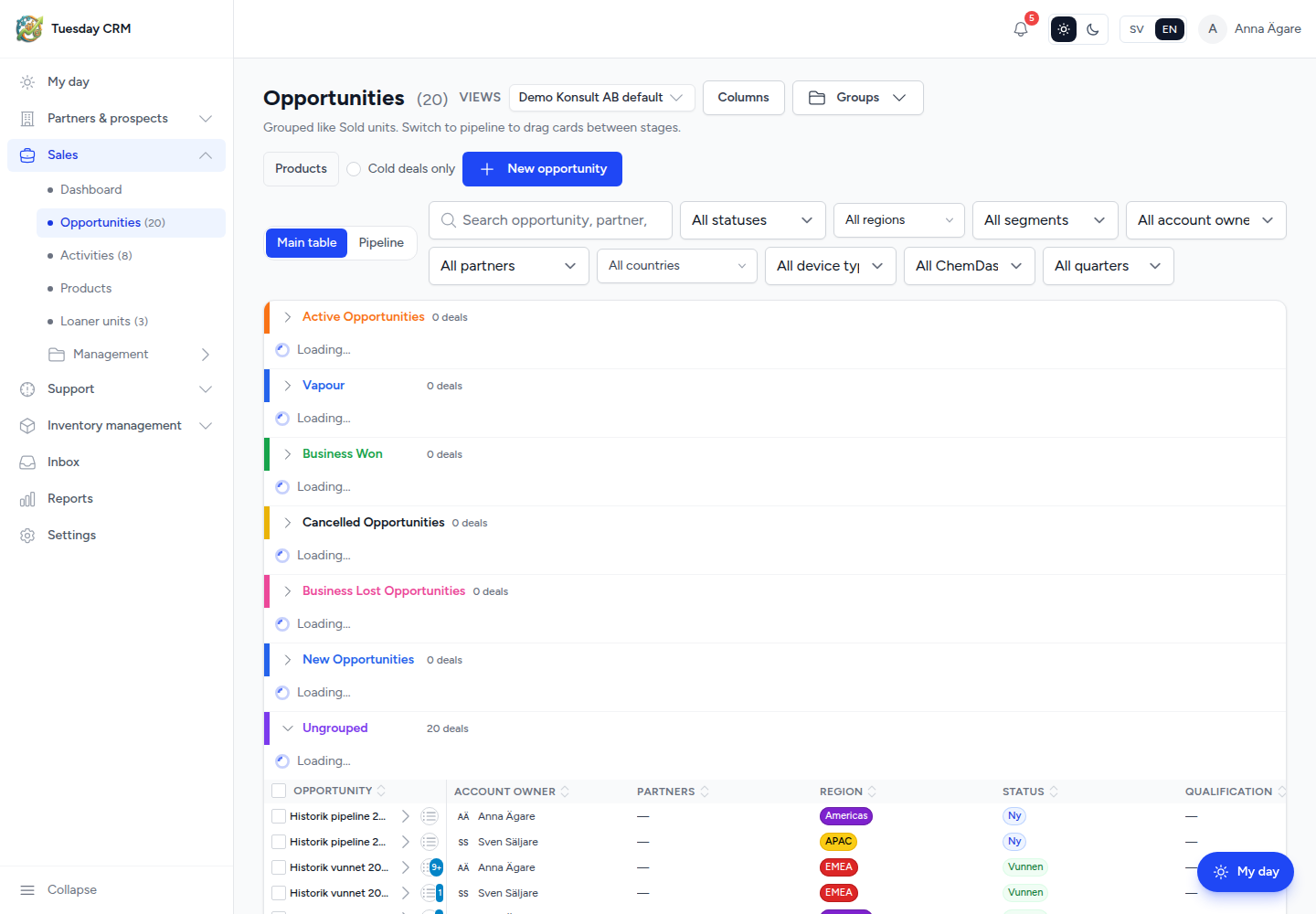
Buttons
- Updates opens the Filter change log (see below).
- Cold deals only limits the list to open deals with no activity for 14 days or more. A Cold chip marks them in Pipeline mode.
- New opportunity opens an empty opportunity editor.
Filters
Search (Search opportunity, partner, account…), All statuses (pipeline stages), All regions, All segments, All account owners, All partners, All countries, All device types, All ChemDash, and All quarters (expected close quarter).
Groups
Opportunities are organized in groups such as Active Opportunities, Vapour, Business Won, Cancelled Opportunities, Business Lost Opportunities, and New Opportunities. Your company can rename and add groups with Edit groups. Marking a deal Won or Lost (or moving it to a won/lost pipeline stage) also moves it to the matching group, for example Business Won. You can still drag a row to another group afterwards.
Columns
The Opportunity column is locked on the left. Before it, each row has a checkbox, the › editor arrow, and the blue notebook icon (Attachments and updates); the small number on the icon is the count of updates and files.
The table has many columns; turn on the ones you need under Columns. The main ones are:
| Column | Meaning |
|---|---|
| Account owner | The salesperson who owns the deal |
| Partners / Partner billing country | The partner involved and its country |
| End customer / Contact | The end-user organization and the contact person |
| Region, Segment(s) | Market region and segments |
| Status | The pipeline stage |
| Qualification | How well the deal is qualified |
| Number of devices, Items | Quantities |
| Order value € | The deal value |
| Weighted value € | Order value × stage probability. Calculated. |
| Expected close date / Expected close Q | When you expect to close. An expected close date in the past on an open deal is highlighted as Overdue date. |
| Actual close date, Days to close | Filled when the deal is won or lost |
| Next step, Next action date | What happens next, and when |
| Device type, ChemDash, Number of libraries, Libraries included, Accessories | Product configuration |
| Total devices price €, Discount devices €, Price libraries €, Discount libraries €, Price accessories € | Price breakdown |
| Competitors, Business lost to, Comments business won/lost | Win/loss information |
| Project protection, Top opportunities, Tender launch date, End user reference, Documentation | Sales management information |
| Created, Last activity, Active opportunity date | Dates set by Tuesday |
Pipeline
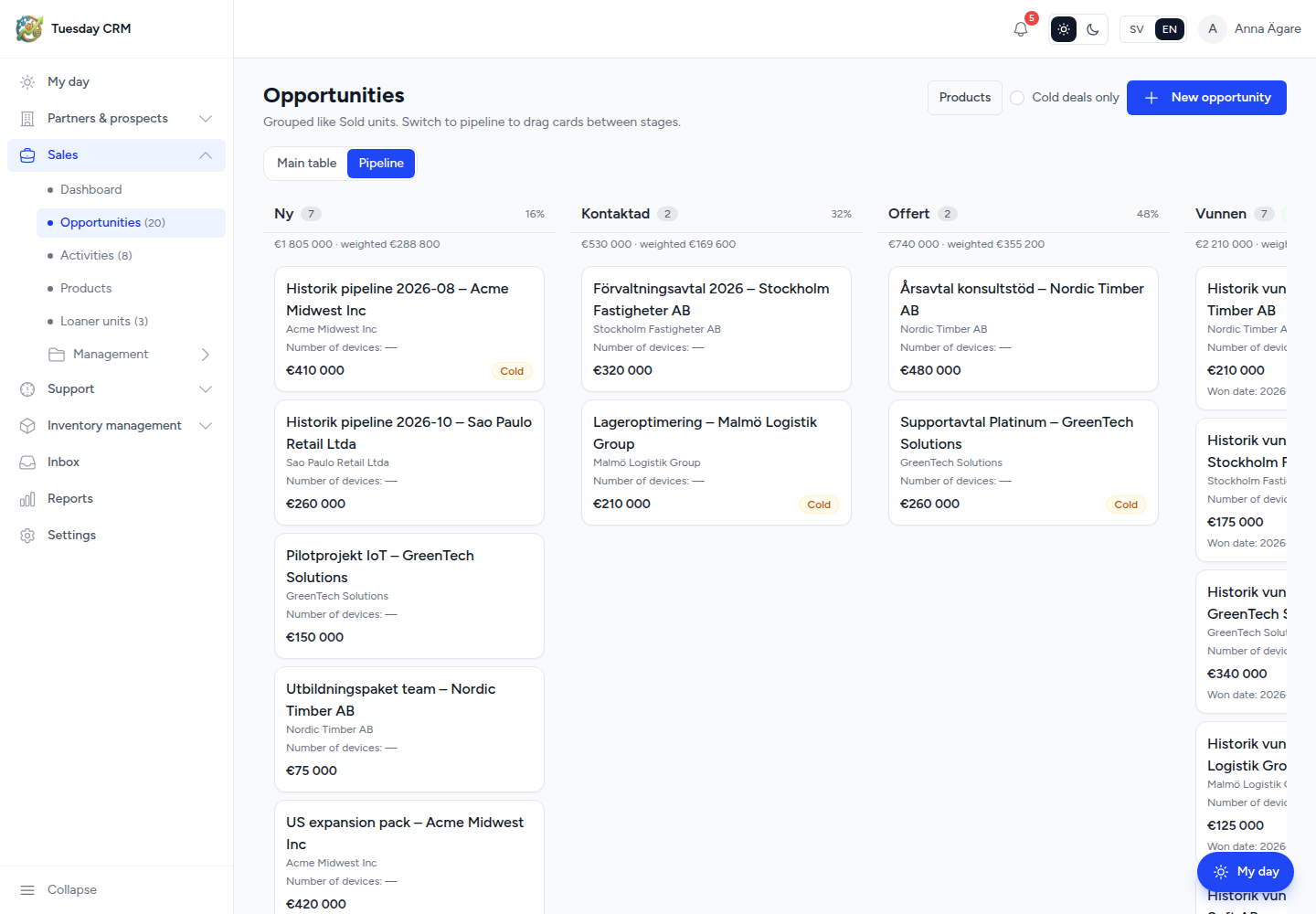
Each column is one stage. The column header shows:
- The stage name and the number of deals in it.
- The stage's win probability (for example 16%).
- The total value and the weighted value of the deals in it (€1 805 000 · weighted €288 800).
Each card shows the opportunity name, the end customer, Number of devices, the value, a Cold chip if the deal has had no activity for 14+ days, and the Won date on won deals.
Move a deal: drag the card to another column and drop it (Drop here). The stage, probability, and weighted value update straight away.
Mark a deal as lost: when you drop a card on a lost stage, Tuesday asks for a Reason (Why was the deal lost?). Click Mark as lost to confirm. The reason is shown on the deal (for example Lost 2026-09-12 · Price too high).
The same filters as the Main table apply in Pipeline mode. Stage names, order, type (open, won, or lost), and probabilities are set under Settings → System fields → Pipeline stages.
The opportunity editor
Click › on a row, a card in Pipeline mode, or New opportunity. The editor has three tabs: Details, Files, and BOM.
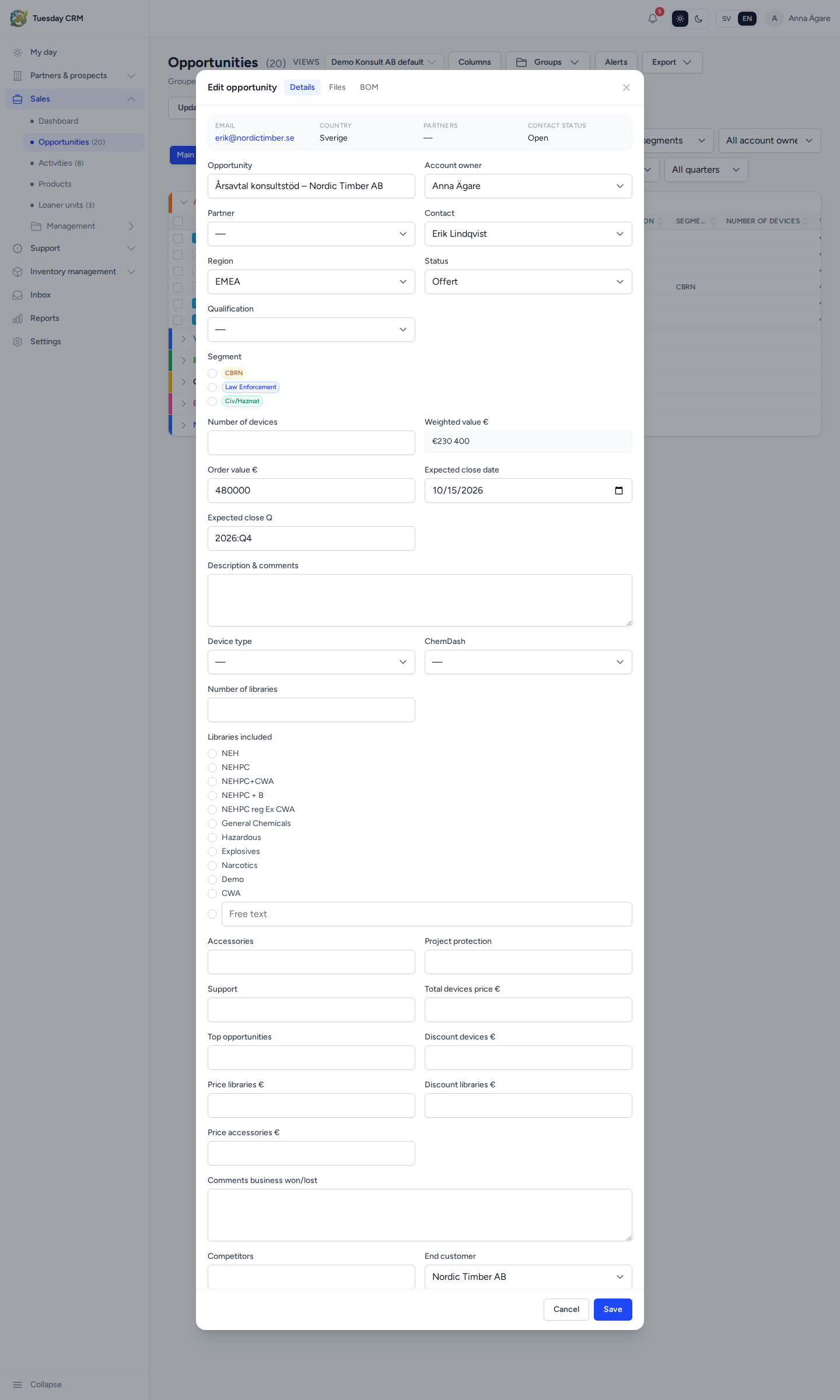
The summary strip shows the contact's Email, Country, the Partners involved, and the Contact status (Open, Won, or Lost).
Details
The Details tab holds all fields of the opportunity:
- Opportunity (name) and Account owner.
- Partner and Contact. People at a partner appear once the partner is chosen. Leave Partner empty for a direct end-customer deal.
- Region, Status (stage), and Qualification.
- Segment: tick the segments that apply.
- Number of devices, Order value €, and Weighted value € (calculated, read-only).
- Expected close date and Expected close Q (for example 2026:Q4).
- Description & comments.
- Device type and ChemDash are drop-down lists. The field shows the choice as soon as you pick it, and Tuesday saves it straight away.
- Number of libraries, and Libraries included (tick the libraries, or type your own in Free text).
- Accessories, Project protection, Support, Top opportunities.
- Total devices price €, Discount devices €, Price libraries €, Discount libraries €, Price accessories €.
- Comments business won/lost, Competitors, and End customer.
- Any custom fields for opportunities.
Click Save to store your changes.
At the bottom of the Details tab of an existing deal:
- Stage & probability shows the weighted value, the qualification and tender launch date if set, N days in current stage, and a history of how many days the deal spent in each earlier stage.
- On an open deal, Won and Lost close the deal. Before clicking Lost, write the Reason (Why was the deal lost?).
- A won deal shows a green banner (Won 2026-09-12 · €480 000). A lost deal shows a red banner with the date and reason.
- Delete removes the deal after you confirm.
Files
The Files tab has the deal's attachments (Add attachment) and, below them, the deal's Timeline: notes, calls, emails, meetings, and tasks logged on the deal or its contact. The notebook icon on the row opens this tab directly.
BOM
The BOM (bill of materials) tab lists what you are selling in the deal.
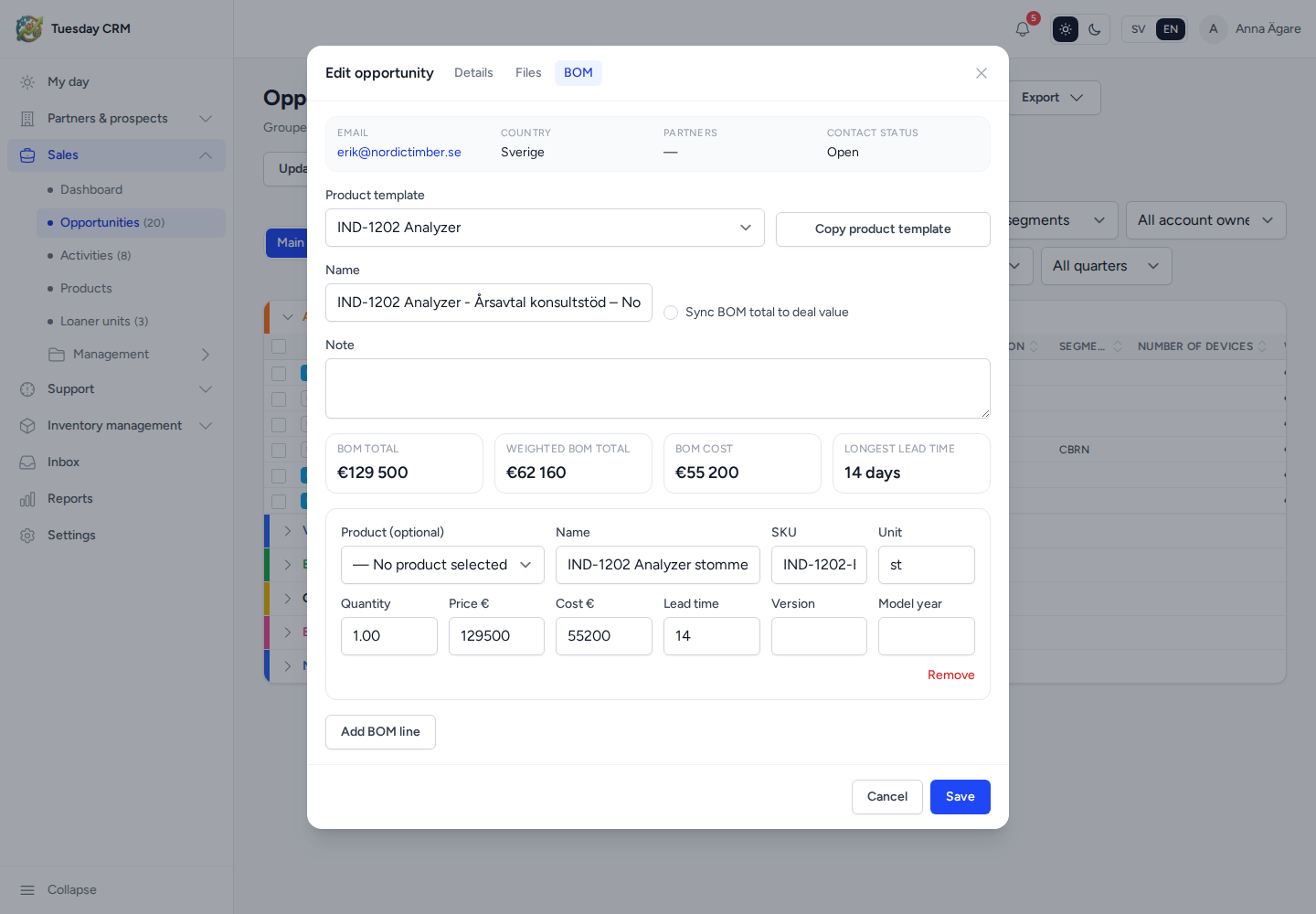
- Pick a Product template and click Copy product template to copy that product's standard BOM into the deal. This replaces any lines already on the deal. See Products.
- Adjust the Name of the BOM and add a Note if needed.
- Each BOM line has Product (optional), Name, SKU, Unit, Quantity, Price €, Cost €, Lead time (days), Version, and Model year. Click Add BOM line to add a line, or Remove to delete one.
- Tick Sync BOM total to deal value to keep the deal's Order value € equal to the BOM total.
- Click Save.
The key figures above the lines are calculated for you: BOM total, Weighted BOM total (BOM total × stage probability), BOM cost, and Longest lead time.
Filter change log (Updates)
Click Updates at the top of the page to see what has changed on opportunities.
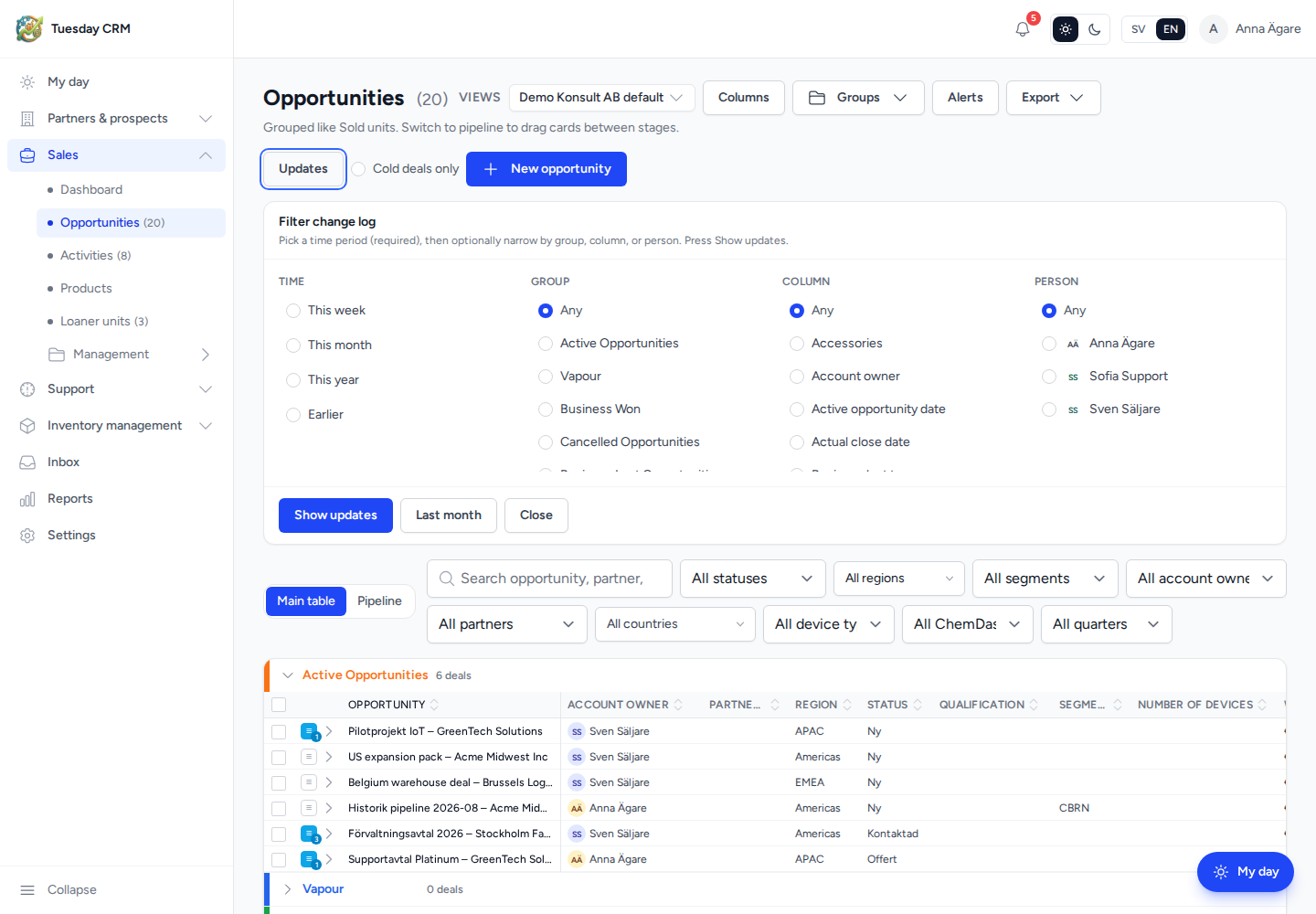
Pick a time period (required), then optionally narrow by group, column, or person. Press Show updates.
- Time: This week, This month, This year, or Earlier.
- Group: changes to deals in one group, or Any.
- Column: changes to one field (for example Account owner or Actual close date), or Any.
- Person: changes made by one user, or Any.
Click Show updates. The table then shows only the deals with matching changes, with the number of changes on each. Click Last month to see all changes from last month in one click (the other filters are ignored). Close hides the panel and goes back to the normal list.
Who sees which opportunities
What you see depends on your visibility under Settings → Users: Own deals only shows only the deals you own, All company deals shows all. Partner users see only the deals their partner has been given access to.
Next: Activities.