
Tickets
Tickets are support cases: a question, a fault report, or a request from a customer or partner. Open Support → Tickets. The number in brackets after the heading is the number of cases in the list.
Cases are linked to a partner and a person at that partner. End customers can stay without a partner until someone assigns one.
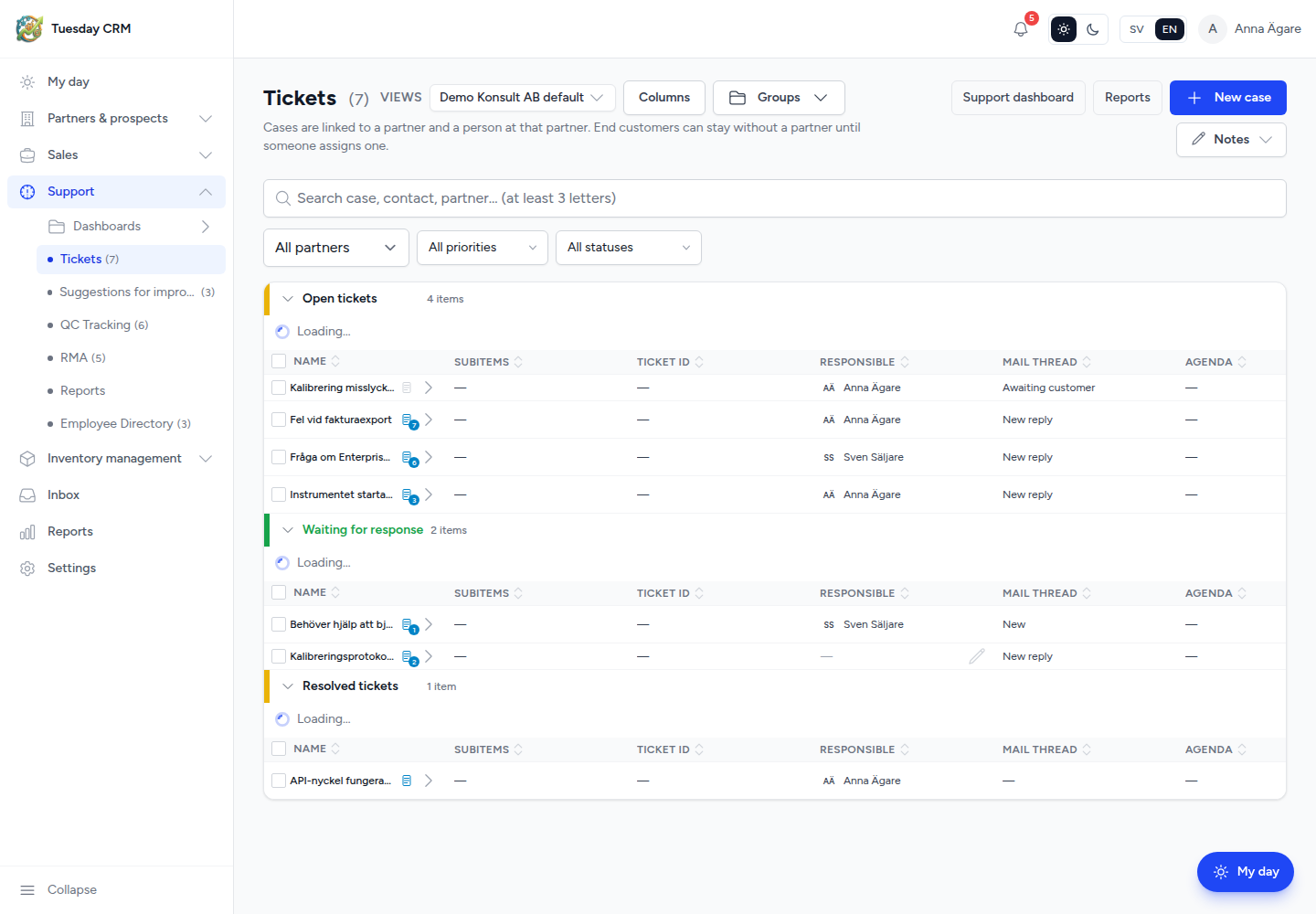
The list works like every other table in Tuesday — Views, Columns, Groups, Alerts, Export, double-click editing, and the selection bar are explained in Tables, views, and groups.
Header buttons
| Button | What it does |
|---|---|
| Support dashboard | Opens the Support dashboard. |
| Reports | Opens Support reports. |
| + New case | Opens an empty case editor (see Creating a case below). |
| Notes | A shared note for the support team, shown to everyone who opens Tickets. |
Search and filters
- Search — Search case, contact, partner… (at least 3 letters). Finds cases by name, contact, or partner.
- All partners — show only one partner's cases. No partner shows cases that are not yet linked to a partner.
- All priorities — Low, Normal, High, or Urgent.
- All statuses — Open cases (everything that is not resolved or closed), or one status: Open, In progress, Waiting on customer, Resolved, or Closed.
- All QC by, All QC years, and All QC results — show tickets whose instrument serial matches a QC Tracking row. QC by is Optronics or Serstech, decided from the QC group the same way as the QC dashboards. QC year is the year in that group name, for example 2026. QC result is PASS or FAIL on the newest test. The three filters combine, so Optronics and 2026 lists every ticket for an instrument QC'd by Optronics in 2026.
Clicking a person (Responsible), a contact, a partner, a status, or a priority in the table filters the list to that value. The active filter shows as a chip above the table; click × on the chip to remove it.
Users with the Partner role see only their own organization's cases, and the partner filter is hidden for them.
Groups
Cases are grouped into Open tickets, Waiting for response, and Resolved tickets. The group follows the status: when you set a case to Waiting on customer it moves to Waiting for response, and when you set it to Resolved or Closed it moves to Resolved tickets. You can rename the groups, add more, or change colors with Groups → Edit groups.
Columns
The table can show many columns; use Columns to choose. Name (the case subject) is always first. The most used are:
| Column | Meaning |
|---|---|
| Name | The case subject. Click it to open the case. |
| Subitems | Sub-tasks or related items noted on the case. |
| Ticket ID | The case number. Every new case — from email, the partner form, or created by hand — gets the next number after the highest one in use. Imported cases keep their original ID. |
| Responsible | The team member who owns the case. |
| Mail thread | Where the email conversation stands (see below). |
| Agenda | Free text for what to do next. |
| Status | Open, In progress, Waiting on customer, Resolved, Closed. Use Edit labels on the cell to rename the labels your company shows. |
| Support | The support category, for example Hardware, Firmware, or Return/RMA. |
| Customer Name | The contact person who raised the case. |
| Contact Partner | The partner organization the case belongs to. |
| Priority | Low, Normal, High, Urgent. |
| Product Model / Instrument version, Instrument is problem (Model), License, ChemDash version | Which product the case is about. |
| RMA, RMA Status | The linked return, if the unit was sent in. |
| First Response Time Tracking, Resolution Time Tracking | Calculated: time from when the case came in to the first reply, and to the solution. They start counting when the case is created — for helpdesk email, when the email arrived. First response time stops at the first reply to the customer (or when the case moves to Waiting on customer). Resolution time keeps running until the status is set to Resolved or Closed. Both clocks pause from Friday 17:00 to Monday 09:00 (Europe/Stockholm) so weekends are not counted. Weekday nights Monday–Thursday still count. |
| Days between created and resolved | Calendar days from when the case was created until it was set to Resolved or Closed. Filled in automatically. |
| Ticket created, Ticket resolved, Solution provided, Ticket re-opend, Resolved after re-open, Customer Response Date | Key dates in the life of the case. |
| Root cause | Why the problem happened. Used by the root-cause charts on the dashboards. |
| Serial number | The instrument serial number. The partner support form fills this in. It is also the value matched against QC Tracking. Tickets imported from the old Monday board usually keep their serial in an extra column called S/N; Tuesday reads that one too (see Produced). |
| QC by, QC year, QC result | Optional. From the newest QC record for that serial: who tested it (Optronics or Serstech), the year in the QC group name, and PASS or FAIL. Add them with Columns. Click a value to filter the list. |
| Produced | Optional. The QC Tracking group the instrument belongs to, for example Optronic 2026 or Serstech 2026, looked up from the serial number. Shows No S/N added or Unknown when it cannot be looked up. See Produced. |
Your company may have more columns, including its own extra columns.
Mail thread
The Mail thread column is updated automatically when a helpdesk mailbox is connected:
| Value | When it is set |
|---|---|
| New | A new email arrived and created the case. |
| New reply | The customer replied to an existing case. |
| Awaiting customer | Someone on your team replied from the case. |
Sort or filter on New reply to find the customers who are waiting for you.
How email finds its ticket
Every few minutes Tuesday reads the connected mailboxes and puts each email on the ticket it belongs to. It looks in this order and stops at the first match:
- Ticket number — the ticket ID anywhere in the subject, written as
[#5076027551]or#5076027551. Emails sent from Tuesday also carry the ticket number in hidden headers, so replies to them always find their ticket. - Reply to an earlier email — when someone answers an email that is already on a ticket, the email program says which email it answers. Tuesday follows that link, even if the subject was changed.
- Subject — the subject without Re:, SV:, Fwd:, VB: or a mail-gateway tag such as [EXTERNAL], compared with the ticket name and with the subjects of the emails already on the ticket. A renamed ticket therefore still finds its emails.
When two or more tickets have the same subject, Tuesday picks the one that shares a person with the email: the ticket's contact, someone who is already on the ticket's emails, or the same company domain (a colleague at orlando.gov joins the ticket of john.tramell@orlando.gov). Free email domains such as gmail.com never count as the same company.
Which mailboxes are read:
| Mailbox | What happens |
|---|---|
| Helpdesk mailbox | Every email is matched as above. An email that matches no ticket creates a new ticket. |
| Your own mailbox | An email is added to a ticket only if it clearly belongs there: a ticket number, a reply to a ticket email, or the same subject and a person or customer domain in common with the ticket. Emails in personal mailboxes never create tickets. |
So a reply you send to the customer from your own Outlook, without helpdesk in copy, still lands on the ticket when the subject is the same.
Things to know:
- A customer nobody on the ticket knows who writes with a familiar subject gets a ticket of their own. Two customers who both write Battery replacement never end up on the same ticket.
- Replies sent as helpdesk from Outlook reach the ticket from the helpdesk mailbox's Sent Items. For this, your IT administrator must let Outlook save a copy of mail sent as the shared helpdesk address in the shared mailbox (see Inbox → Mailboxes).
- Replies sent from Tuesday are saved on the ticket when you send them. When the same email later turns up in Sent Items, Tuesday recognizes it and does not log it a second time.
- Ticket numbers shorter than four characters are not recognized in the subject. Those tickets are matched by subject and people instead.
How email changes the status
| The email is… | Status afterwards |
|---|---|
| From the customer | Open, and Mail thread New reply. A resolved ticket is reopened. |
| From your team to the customer (from Tuesday, from Outlook as helpdesk, or from your own address) | Waiting on customer, and Mail thread Awaiting customer. |
| From a colleague to the helpdesk only, without the customer | Unchanged. It is logged as an internal email. |
| From a colleague who raised the ticket themselves | Open, like any customer reply. When an employee opens a ticket by writing to helpdesk, they are that ticket's customer. |
Your team means everyone who writes from your company's own email domain (for example @serstech.com), also colleagues who do not have a Tuesday login, plus the helpdesk address. Tuesday learns the domain from the users and the helpdesk mailbox. Old emails that arrive late, for example after reconnecting a mailbox, are added to the ticket without changing its status.
Creating a case
Click + New case. The editor opens on Details with Status set to Open and Priority set to Normal.
- Type a Name (the subject). This is the only required field.
- Pick the Customer Name (contact) and the Contact Partner. If you leave Customer Name empty, Tuesday creates a contact with the case name so the case always has a contact — rename or replace it later.
- Fill in Responsible, Support, product fields, and Priority as needed.
- Click Save.
Cases are also created automatically:
- by email to a connected helpdesk mailbox (see Inbox and Settings → Support);
- by the public Partner support form, which partners and end users fill in without logging in.
Tuesday can send an automatic "we have received your case" email for these. Turn it on in Settings → Support.
The case editor
Click a case name to open Edit case. It has three tabs: Updates, Details, and Files. It opens on Updates when the case has updates, otherwise on Details.
The strip at the top shows the contact's Email, Country, Partners, and Contact status.
Updates
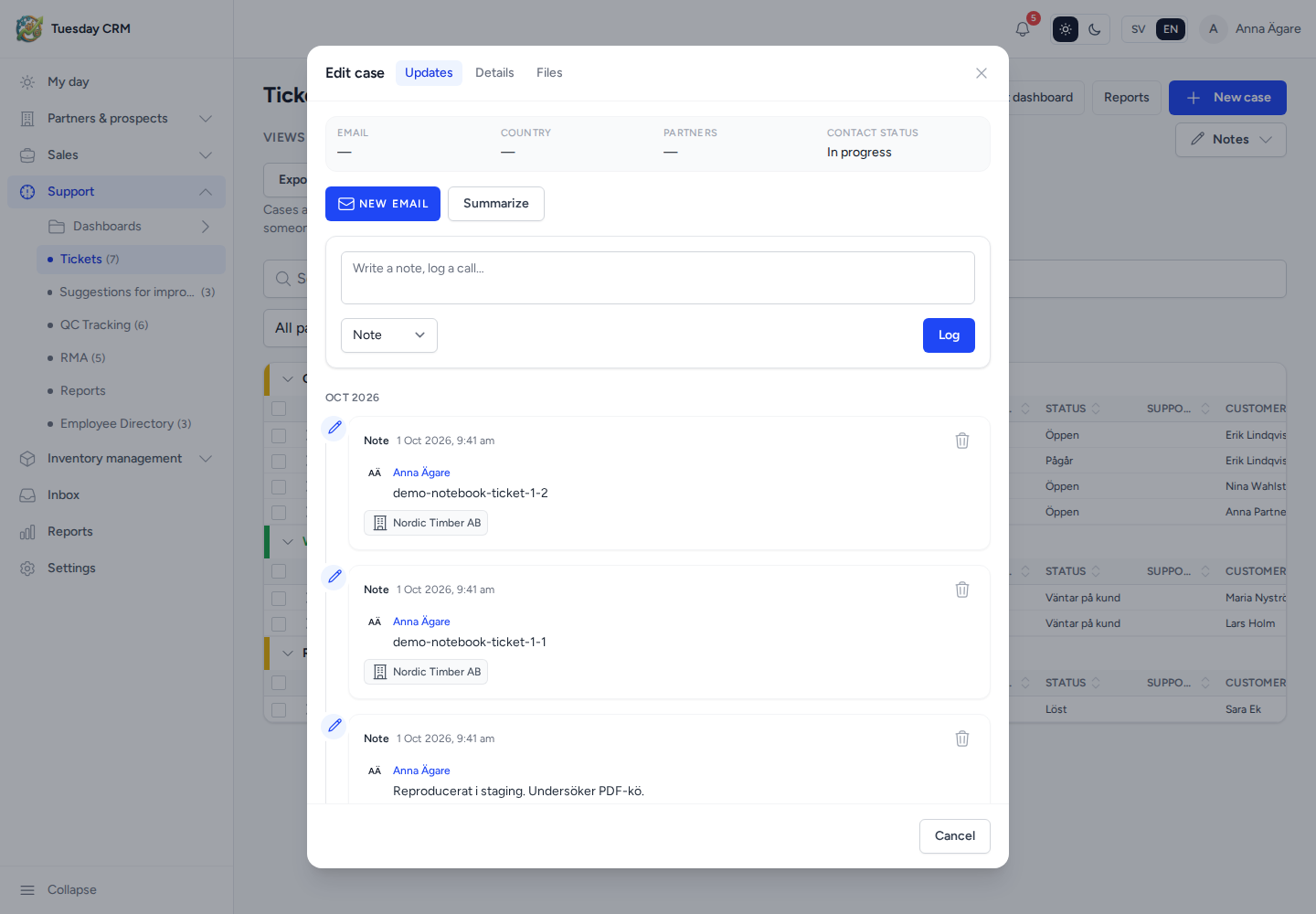
- New email writes an email to the case contact from your connected mailbox. The email is saved on the case and the Mail thread becomes Awaiting customer. When the customer replies, the reply is added to the case.
- Summarize is reserved for an AI summary of the case history and is not available yet.
- Reply and Forward (the arrows at the top right of an email in the timeline) answer or forward that email. The editor opens right under the buttons you clicked, above the email text, so you do not have to scroll past a long quoted history to find it.
- Reply answers that email. On cases from the partner web form, click Reply by email on the Case opened from the partner web form entry to write to the address the customer filled in. The reply is sent from the helpdesk mailbox and saved on the case timeline with its full text, so the whole conversation stays on the case. Include signature adds the signature of the person who is signed in, under the message and above the quoted email. The automatic "ticket received" email does not use that signature.
- Type in Write a note, log a call…, choose the type (Note, Call, Email, Meeting, or Task), and click Log.
- The timeline lists everything that has happened, newest first, grouped by month. Each entry shows its type, who wrote it, when, and which organization it relates to. Click the bin to delete an entry.
Pinned notes
Notes on a ticket can be pinned so the important ones stay at the top.
- Tick Pin to top when you log a new note, or click Pin to top on a note that is already on the timeline.
- Pinned notes appear in a Pinned section above the timeline, with the most recently pinned note first. Each card shows the note, who wrote it, when it was written, and who pinned it.
- The same note stays in its usual place on the timeline and is marked Pinned.
- Click Unpin to take it out of the Pinned section. Editing a pinned note keeps it pinned. Deleting it removes it.
- You can pin more than one note. When more than three are pinned, the section shows three and a Show all pinned link.
- Pinning is available on tickets and on RMA records.
Pinned notes are internal. People with the Partner role do not see notes, and a pinned note is never included in an email to the customer or on the public partner support form.
On the tickets list, open Columns and add Pinned note if you want the first line of the newest pinned note on each ticket. The RMA list has the same optional column. That column is not shown to the Partner role.
Details
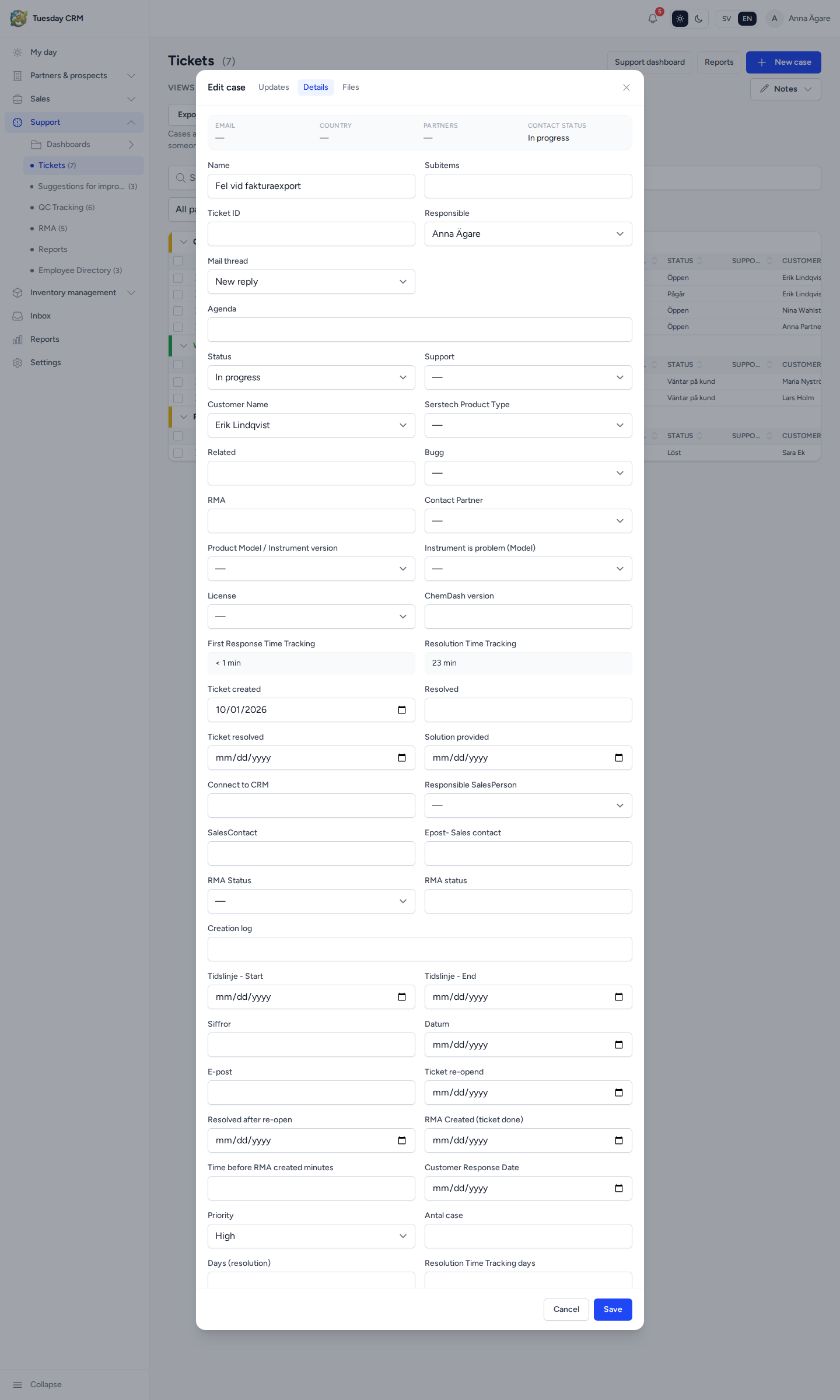
Every column of the table is a field here. Calculated fields such as First Response Time Tracking, Resolution Time Tracking, RMA, and RMA Status are read-only. RMA and RMA Status come from the RMAs linked to the ticket. Change what you need and click Save, or Cancel to close without saving.
The RMAs card on the ticket lists each linked return: RMA number, serial number, status, received date, and working days. Open a row to edit that RMA. Create RMA from this ticket starts a new external RMA with the next RMA number, filled in from the ticket, and links it. Link existing RMA searches by RMA number or serial number. Unlink asks for confirmation and removes the link. One ticket can have several RMAs. One RMA belongs to one ticket.
The QC history card lists every QC Tracking row whose serial number or partner-specific serial number matches the ticket's Serial number, newest test date first. Each row shows who did the QC (Optronics or Serstech, from the group), the year in the group name, the test date, PASS or FAIL, the failure owner, and the reason. Click a row to open that QC record. If nothing matches, the card says No QC record found for this serial number. Change the serial number and the card updates. The same card is on the RMA editor.
Produced
Produced tells you which production batch the instrument comes from, for example Optronic 2026 or Serstech 2026. It is the name of the QC Tracking group that holds the instrument's serial number. Use it to follow up on tickets per producer and year, for example for the management review.
Add the column with Columns (it is hidden by default). It is also a field on the Details tab.
| The cell shows | When |
|---|---|
| A group name, for example Optronic 2026 | The serial number is found in QC Tracking. The value is read-only; hover over it to see From QC Tracking by serial number. If the serial is in several QC rows, the newest test decides. |
| Unknown | The ticket has a serial number, but QC Tracking has no row for it. |
| No S/N added | The ticket has no serial number at all. |
Where Tuesday looks for the serial number: Serial number, Partner specific serial number, and any extra column named like S/N, SN, Serial number or Serienummer — which is where imported tickets keep it. A field with several serial numbers (1A0604B20023, 1A0604B20024) matches on any of them.
When it is not found you can choose the group yourself from the dropdown (Unknown or No S/N added first, then the QC Tracking groups). As soon as a serial number that exists in QC Tracking is filled in, the QC group takes over, also over a group you chose by hand.
It stays up to date by itself:
- Filling in or changing the serial number updates Produced at once.
- Adding, moving, or deleting a QC Tracking row updates the tickets with that serial number.
- Renaming a QC Tracking group renames Produced on every ticket and RMA that shows it.
- Once an hour Tuesday also checks all tickets and RMAs, so values from imports and bulk changes catch up.
The Support dashboard has a Tickets per producer chart built on this field.
Files
Attach screenshots, logs, and reports with Add attachment. Each file shows when and by whom it was uploaded. Click the file name to download it, or × to remove it.
Working a case — a typical flow
- A new email arrives in the helpdesk mailbox. Tuesday creates the case in Open tickets with Mail thread New.
- You set Responsible to yourself and Status to In progress.
- You answer from Updates with Reply (or Reply by email on a web-form case). The Mail thread becomes Awaiting customer, the status changes to Waiting on customer by itself, and the case moves to Waiting for response. First response time tracking stops and records the time to the first reply; resolution time tracking keeps running (except over the weekend pause from Friday 17:00 to Monday 09:00).
- The customer replies. The Mail thread becomes New reply, the status goes back to Open. If a colleague answers the customer from Outlook instead of Tuesday, that reply is picked up too and the ticket goes to Waiting on customer (see How email changes the status).
- When the problem is solved, fill in Root cause and Solution provided, and set the status to Resolved. The case moves to Resolved tickets, the time tracking stops, and Days between created and resolved is filled in.
- If the unit has to come in for repair, create an RMA and link it in the RMA field.
Tips
- Create an alert on Priority is Urgent to be told whenever a case becomes urgent.
- Keep Root cause and Product Model filled in; the Support dashboards and Support reports are built on them.
- Keep the subject when you reply, even from Outlook. Most emails find their ticket by subject; a new subject only works when you reply to an email that is already on the ticket.
- If your company writes ticket numbers in subjects, keep the
[#number]part. It always wins. - Answer customers as helpdesk or with helpdesk in copy. Replies from your own address work too, but only while the subject is unchanged.
- Fill in the Serial number (or the imported S/N column) as early as possible, so Produced, QC by, and the QC history card fill in by themselves.
- A ticket showing Unknown under Produced usually means the serial number is mistyped or the instrument is missing in QC Tracking. Check the QC history card on the ticket.
Next: Suggestions for improvement.