
Inbox
Inbox in the sidebar connects your email to Tuesday. Your emails are automatically logged on the right contact once you connect your email. Emails to and from people who are contacts in Tuesday appear on that contact's Updates tab, so the whole team sees the conversation without forwarding anything.
Connecting a mailbox
The first time you open Inbox you see Connect your email — Connect Outlook via OAuth, or Gmail/other email via IMAP/SMTP. Passwords are stored encrypted.
| Button | How it works |
|---|---|
| Connect Outlook | Opens the Microsoft sign-in page. Approve access and you are sent back to Tuesday. No password is stored in Tuesday. |
| Gmail or other email | Opens a form for the mail servers. Connect Gmail with an app password, or any other email via IMAP/SMTP. Only Outlook uses OAuth. |
| Connect demo mailbox | Connects a test mailbox with sample emails, so you can try Inbox without real email. |
Gmail or other email
Fill in:
- Email address and Password.
- Incoming (IMAP): IMAP host, Port, and Encryption (SSL, TLS, or None).
- Outgoing (SMTP): SMTP host, Port, and Encryption.
- Username (optional) — Most hosts require the full email address. Leave empty if unsure.
For Gmail, click Fill in Gmail servers to fill in the server settings. Gmail needs an app password, not your normal Google password: Enable 2-step verification in your Google account and create an app password under Security → App passwords.
Click Connect. If Tuesday cannot log in, it shows the error so you can correct the settings. If a connected mailbox later stops working, the error is shown under it in the Mailboxes card.
The Inbox page
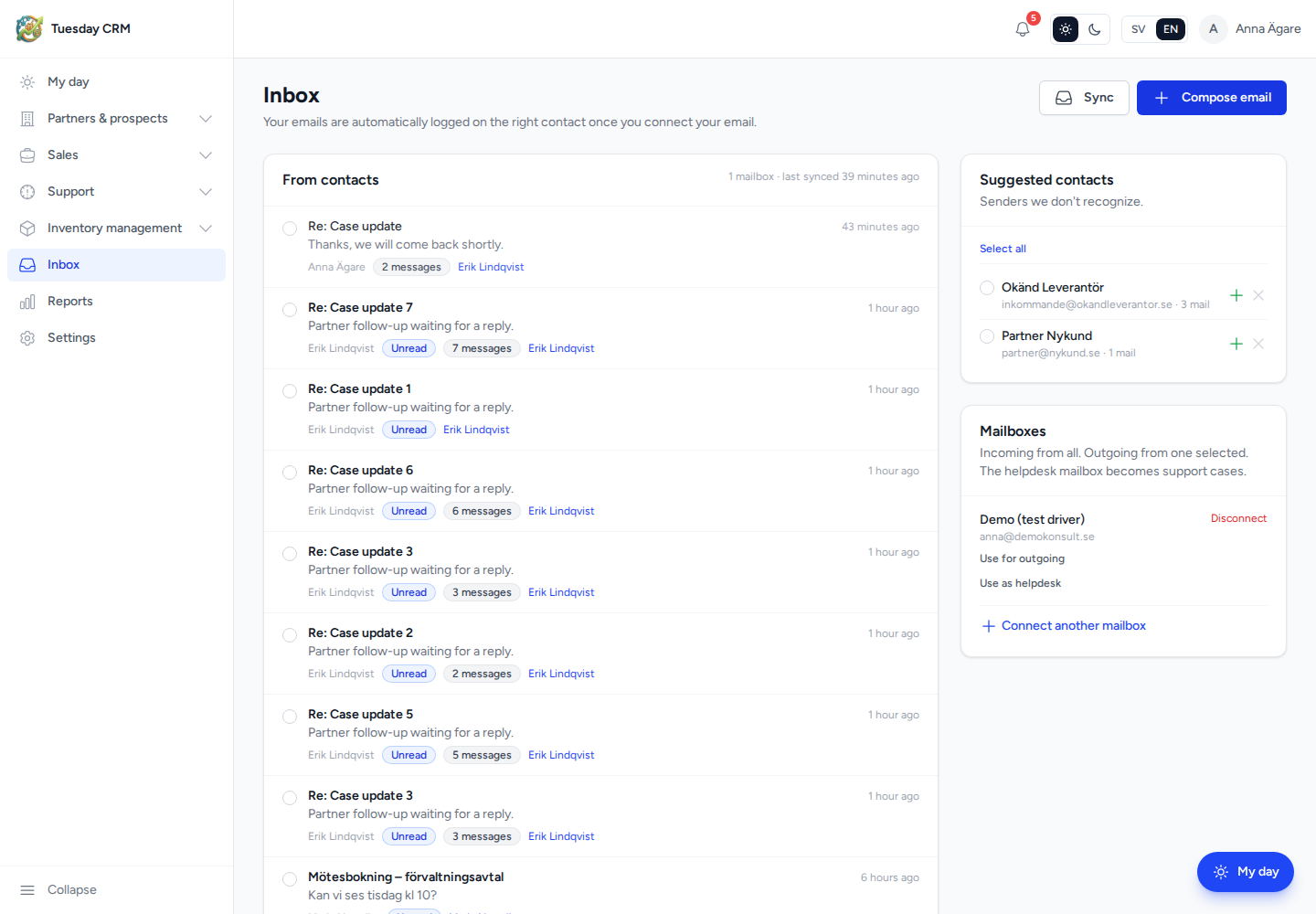
Once a mailbox is connected, the page has three email lists on the left and two cards on the right.
Header
- Signatures opens your email signature. A CEO or Administrator can also edit the company default signature from the same window. Everyone else can edit only their own. To change the size of an image in the signature, click the image: a bar with a size slider, S, M, L, and Original size appears above the text. The size is saved as a width that Outlook and Gmail respect.
- Sync fetches new email now. Tuesday also syncs every five minutes by itself.
- + Compose email opens the composer (see below).
From contacts
Email threads with people who are contacts in Tuesday. The card header shows how many mailboxes are connected and when they were last synced. Each thread shows:
- the subject and the start of the latest message;
- the sender, Unread if you have not opened it, and the number of messages (for example 7 messages);
- the contact it is logged on — click the name to open the contact;
- how long ago the latest message arrived.
Click a thread to read it.
Business related and Spam & marketing
Below From contacts are two more lists for email from senders who are not contacts: Business related and Spam & marketing. Tuesday sorts them for you; if it gets one wrong, drag the thread to the other list (Drag to move).
Selecting threads
Tick the circle at the start of one or more threads. A bar appears with N selected, Mark as read, Delete (asks for confirmation), and Deselect.
Suggested contacts
Senders we don't recognize. People who email you but are not contacts yet. For each one you see the name, the address, and how many emails they have sent.
- + creates a contact with that name and email address, owned by you. Their emails are then logged on the new contact.
- × dismisses the suggestion.
- Select all, then Remove selected, dismisses many at once.
Mailboxes
Incoming from all. Outgoing from one selected. The helpdesk mailbox becomes support cases.
Each connected mailbox is listed with its type and address. For your own mailboxes you can:
- Use for outgoing — emails you send from Tuesday go out from this mailbox. The current one is marked Outgoing.
- Use as helpdesk — every new email to this mailbox creates a support ticket, and replies are added to the existing ticket. Only one mailbox in the company can be the helpdesk; it is marked Helpdesk. The automatic "ticket received" email is set up in Settings → Support. How an email finds its ticket is explained in Tickets → How email finds its ticket.
- Disconnect — removes the mailbox from Tuesday after you confirm. Emails already logged on contacts stay.
- Connect another mailbox — Add for incoming mail. Then choose which one should send.
Under each Outlook mailbox a line shows whether Tuesday can read its Sent Items folder:
| Line | Meaning |
|---|---|
| Sent Items synced (last 2026-11-11 15:04) | Sent Items is read at every sync. The time is the last successful read, in your company's time zone. |
| Sent Items cannot be read: HTTP 403 … | Microsoft refused access. The person who connected the mailbox lacks permission to its Sent Items. Ask your IT administrator. |
| (no line) | The mailbox has not been synced since this check was added, or it is not an Outlook mailbox. |
Replies sent from Outlook
Tuesday reads both the inbox and Sent Items of every connected mailbox. That is how replies written in Outlook reach the ticket:
- Sent from your own address — they are in your own Sent Items. Connect your own mailbox in Inbox, and replies whose subject matches a ticket are added to it.
- Sent as the helpdesk address — Outlook normally saves them in your Sent Items, not the helpdesk's. For Microsoft 365, your IT administrator turns on, once, that a copy is saved in the shared mailbox as well: in Exchange Online PowerShell,
Set-Mailbox <helpdesk address> -MessageCopyForSentAsEnabled $True -MessageCopyForSendOnBehalfEnabled $True. It is a server setting, so it works in every Outlook version. Copies are saved from the day it is turned on; older replies are not picked up.
Emails you send from Tuesday are also saved in Sent Items. Tuesday recognizes its own emails there and does not log them twice.
Reading an email
Clicking a thread opens the email. Use Previous email and Next email to move through the list. Reply and Reply all open a reply below the message with the same fields as the composer. (On a ticket's Updates tab the reply editor instead opens right under the Reply and Forward buttons of the email you answer.) Delete removes the email after you confirm.
Writing an email
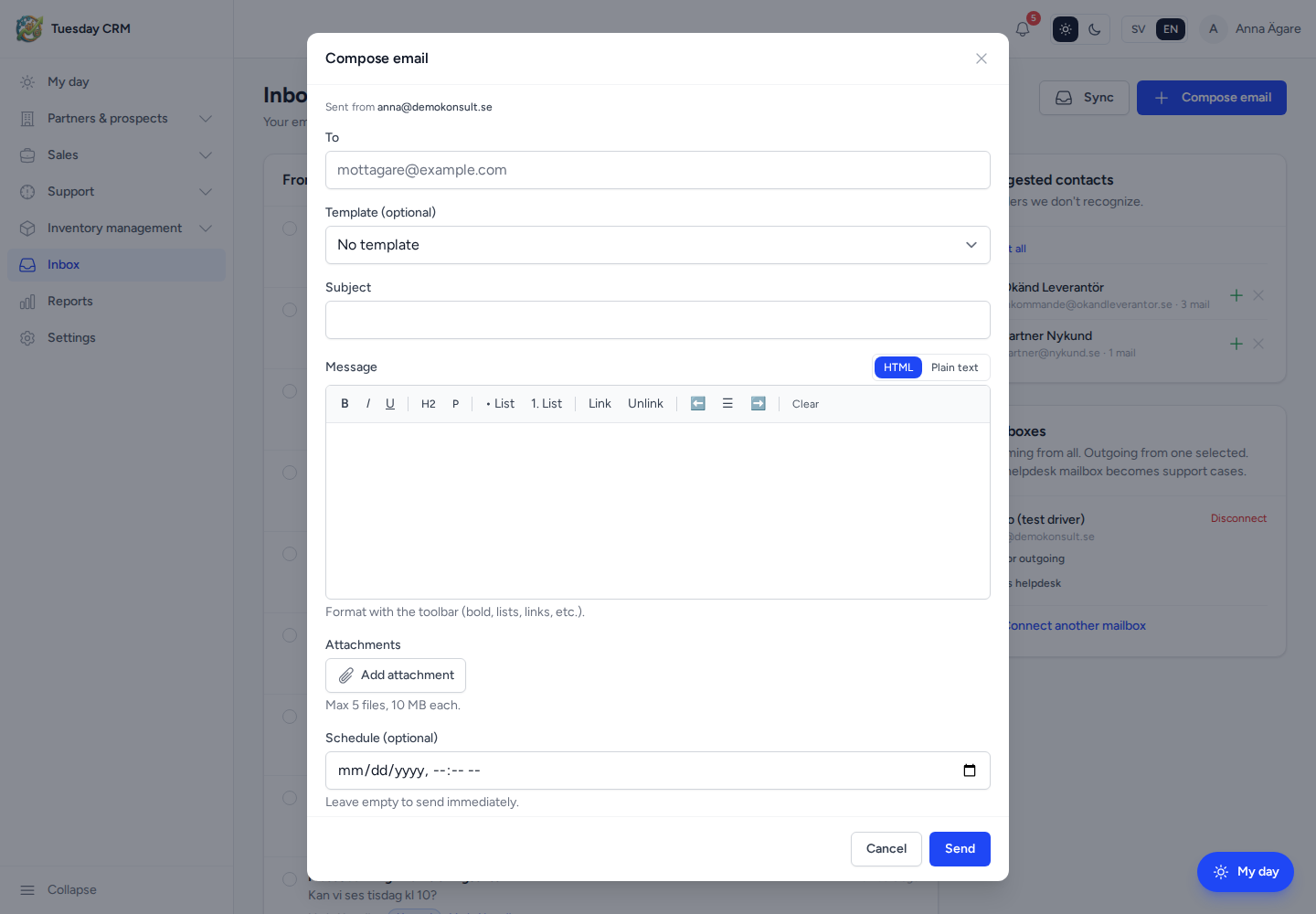
+ Compose email opens Compose email. Sent from shows the outgoing mailbox.
| Field | What to do |
|---|---|
| To | The recipient's address. |
| Template (optional) | Pick one of your company's email templates. It fills in Subject and Message, personalized for the recipient if they are a contact. No template leaves them empty. |
| Subject | The subject line. |
| Message | Write the email. Choose HTML to format with the toolbar — bold, italic, underline, headings, bullet and numbered lists, links, alignment, and Clear to remove formatting — or Plain text. Include signature is on by default and places your signature under the message and above any quoted email. You can edit it before sending. Choosing a template puts the signature after the template text, once. |
| Attachments | Add attachment. Max 5 files, 10 MB each. |
| Schedule (optional) | A date and time to send the email later. Leave empty to send immediately. |
Click Send. The email is sent from your outgoing mailbox and, if the recipient is a contact, logged on their timeline.
You can also write email from a record: New email on the Updates tab of a contact, organization, ticket, or other record opens the same composer addressed to the record's contact. See The Updates tab.
Privacy
Only threads with known contacts are logged on records. Mailboxes and their passwords belong to the user who connected them; only that user can disconnect them or change their role. See also Settings → Integrations.
Next: Reports.