
Reports
Reports in the sidebar is a sales overview in table form — Overview of your sales – key metrics, ready-made reports, and custom views. Use it for quick numbers, for lists you want to email on a schedule, and for tables you can export as PDF. For charts, use the Sales dashboard or the Report Generator.
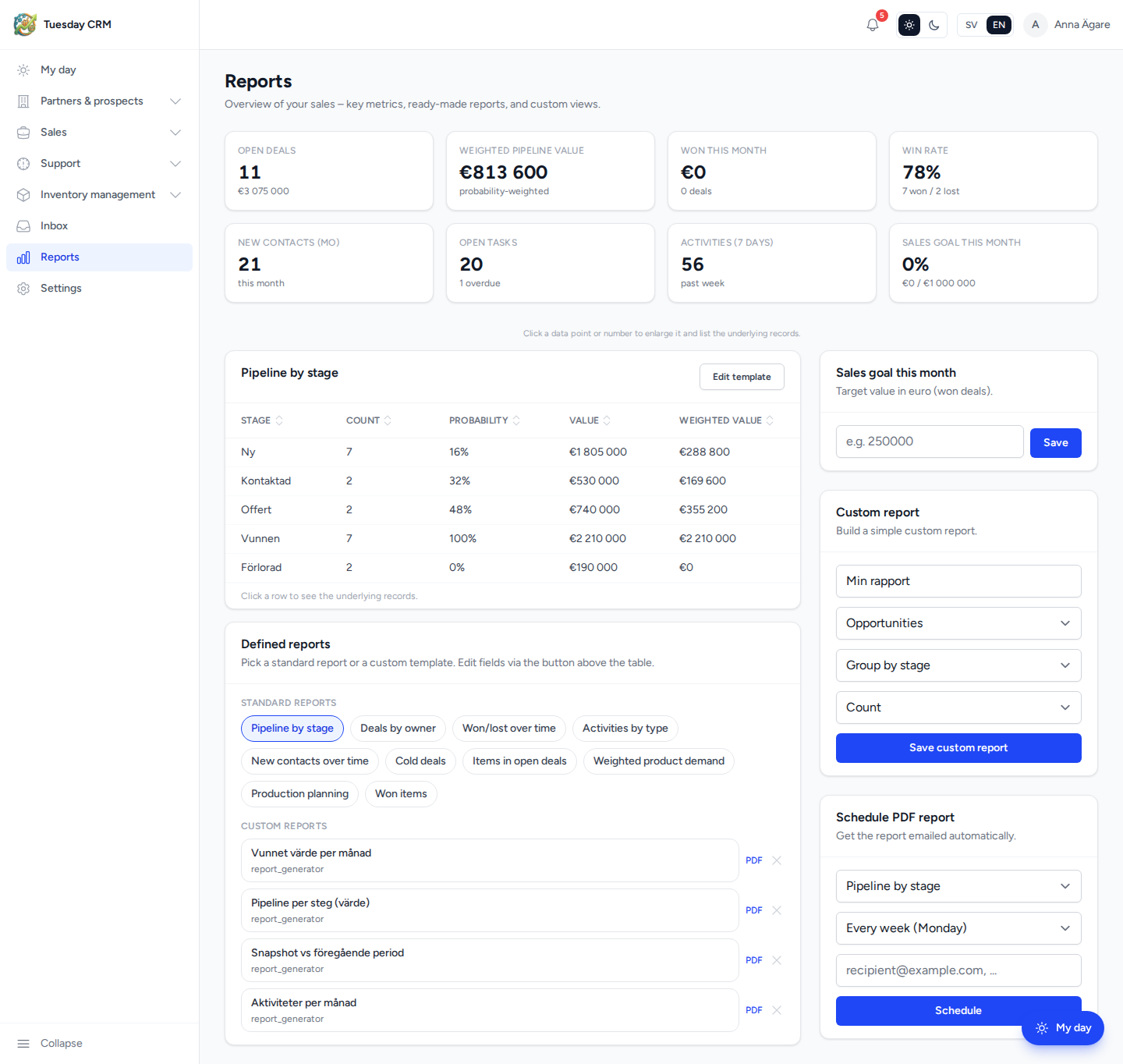
Key figures
Eight key figures across the top. Click a data point or number to enlarge it and list the underlying records.
| Key figure | Meaning |
|---|---|
| Open deals | Number of open opportunities, with their total value underneath. |
| Weighted pipeline value | Total value of open opportunities multiplied by their probability (probability-weighted). |
| Won this month | Value won this month, and how many deals. |
| Win rate | Won deals as a share of closed deals (7 won / 2 lost). |
| New contacts (mo) | Contacts created this month. |
| Open tasks | Open tasks in the company, and how many are overdue. |
| Activities (7 days) | Activities logged in the past week. |
| Sales goal this month | How much of this month's sales goal is reached (won value / goal). |
The report table
The large table on the left shows the selected report — Pipeline by stage when you open the page. Click a column header to sort. Click a row to see the underlying records — for example the opportunities in one stage. Click Back to Reports to return.
Edit template chooses which columns the report shows (Data fields — Choose which columns to show in the report. At least one field must remain.). For a standard report, the choice is saved for the whole company and also used in scheduled PDFs.
Defined reports
Pick a standard report or a custom template. Edit fields via the button above the table.
Standard reports
| Report | What it lists |
|---|---|
| Pipeline by stage | Per stage: number of deals, probability, value, and weighted value. |
| Deals by owner | Per salesperson: number of open deals and their value. |
| Won/lost over time | Deals won and lost per month, for the last six months. |
| Activities by type | Number of activities per type (call, meeting, email…). |
| New contacts over time | New contacts per month, for the last six months. |
| Cold deals | Open deals with no activity for 14 days or more, with value and last activity date (Never if none). |
| Items in open deals | Every product line in the BOM of an open deal: product, deal, quantity, value, and weighted value. |
| Weighted product demand | Per product: total quantity in open deals, weighted quantity, and weighted value. |
| Production planning | Per product: quantity in open deals, longest lead time, and weighted quantity — useful for planning production and purchasing. |
| Won items | Per product: quantity and value in won deals. |
The product reports are built from the BOM tab of each opportunity (see Opportunities).
Custom reports
Your saved reports, including the reports you saved in the Report Generator (marked report_generator). Click a report to show it in the table, PDF to download it, or × to delete it. No custom reports yet – create one on the right. is shown until you have one.
Sales goal this month
Target value in euro (won deals). Type the goal (for example 250000) and click Save. The goal is for the whole company and the current month; it drives the Sales goal this month key figure here and the goal on the Sales dashboard.
Custom report
Build a simple custom report.
- Give it a name (it starts as Min rapport).
- Choose what to count: Opportunities or Contacts.
- Choose the grouping: Group by stage, Group by owner, or Group by status.
- Choose the measure: Count or Sum value.
- Click Save custom report.
The report is added under Custom reports and shown in the table. Use Edit template to rename it or change its settings later. Custom reports are included in some subscription plans only.
Schedule PDF report
Get the report emailed automatically.
- Pick the report.
- Pick how often: Every week (Monday) or Every month (the 1st).
- Enter one or more email addresses separated by commas.
- Click Schedule.
Tuesday emails the report as a PDF early in the morning on the chosen day, using the columns chosen with Edit template.
Next: Settings.