
Partners & prospects
The Partners & prospects folder holds everyone you do business with: the people (contacts) and the organizations they work for. Organizations come in three kinds:
- Partners: resellers and distributors that sell your products. Partners you are still recruiting are prospects.
- End User Organizations: the customers that end up using the products, both prospective and current.
- Adjacent vendors: suppliers and other vendors you work with.
People are kept in separate lists depending on where they work. All lists use the shared table controls in Tables, views, and groups.
| Menu item | What is on it | New button |
|---|---|---|
| Contacts | People at partners and prospects | New contact |
| Partners | Partner organizations, in the groups Partners and Prospects | New partner |
| End User Organizations | End-user customer organizations | New end customer organization |
| End User Contacts | People at end-user organizations | New contact |
| Newsletter recipients | The email list for newsletters | New newsletter recipient |
| Adjacent vendors | Supplier and vendor organizations | New vendor |
| Vendor contacts | People at adjacent vendors | New contact |
Contacts
Contacts lists the people at your partners and prospects (Contacts at partners and prospects.).
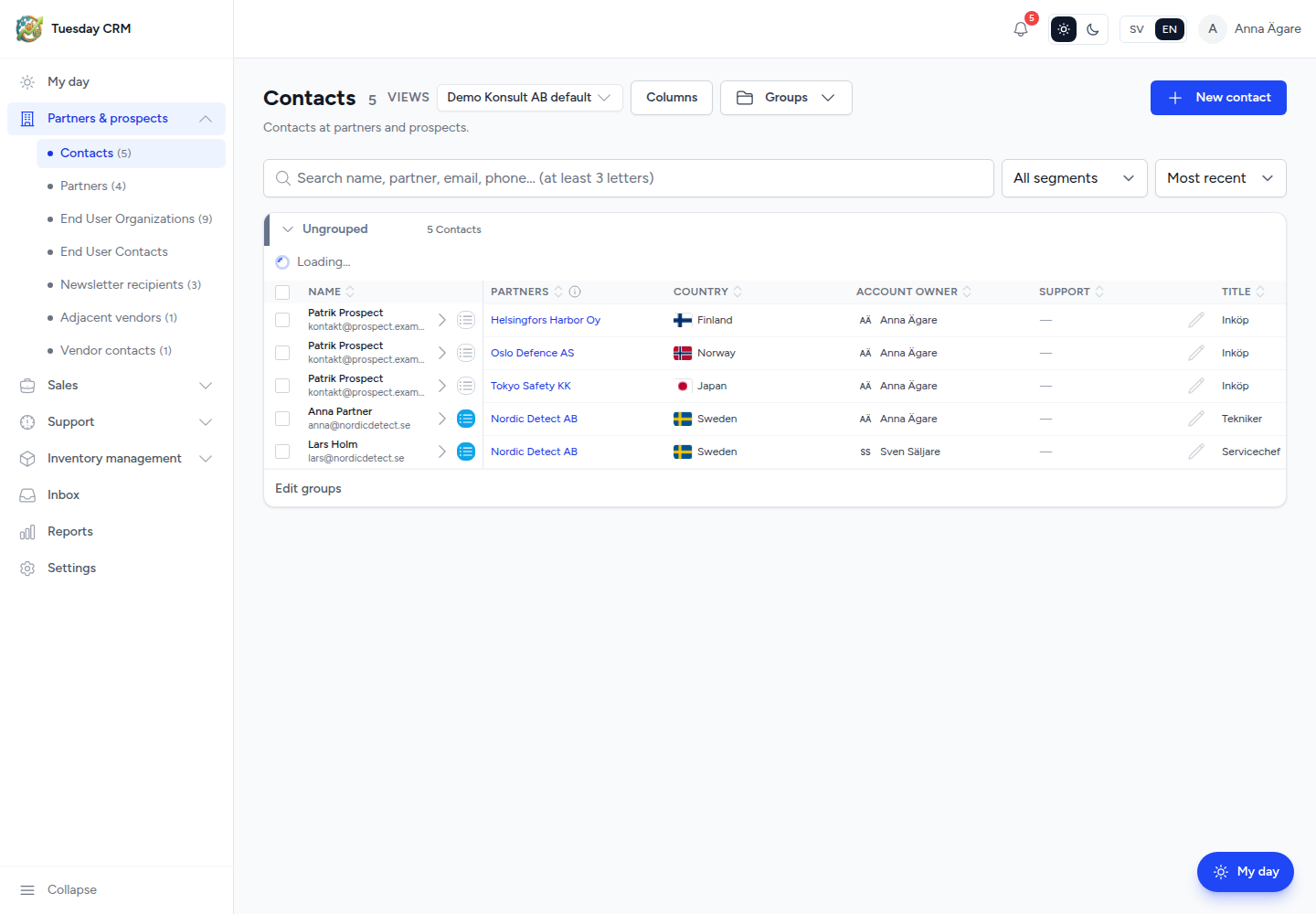
Columns in the default view: Name, Partners (the partner organization the person works for), Country (with flag), Account owner, Support, Title, Mobile, Email, Account, Contact status, and more columns you can turn on in Columns (Phone, Region, LinkedIn, Segments, Marketing updates, Date Created, Comments, link to Tickets, Group).
Filters:
- Search (Search name, partner, email, phone…), from 3 letters.
- All segments: only contacts in one segment.
- Most recent / Name A–Z: the sort order of the list.
All contacts
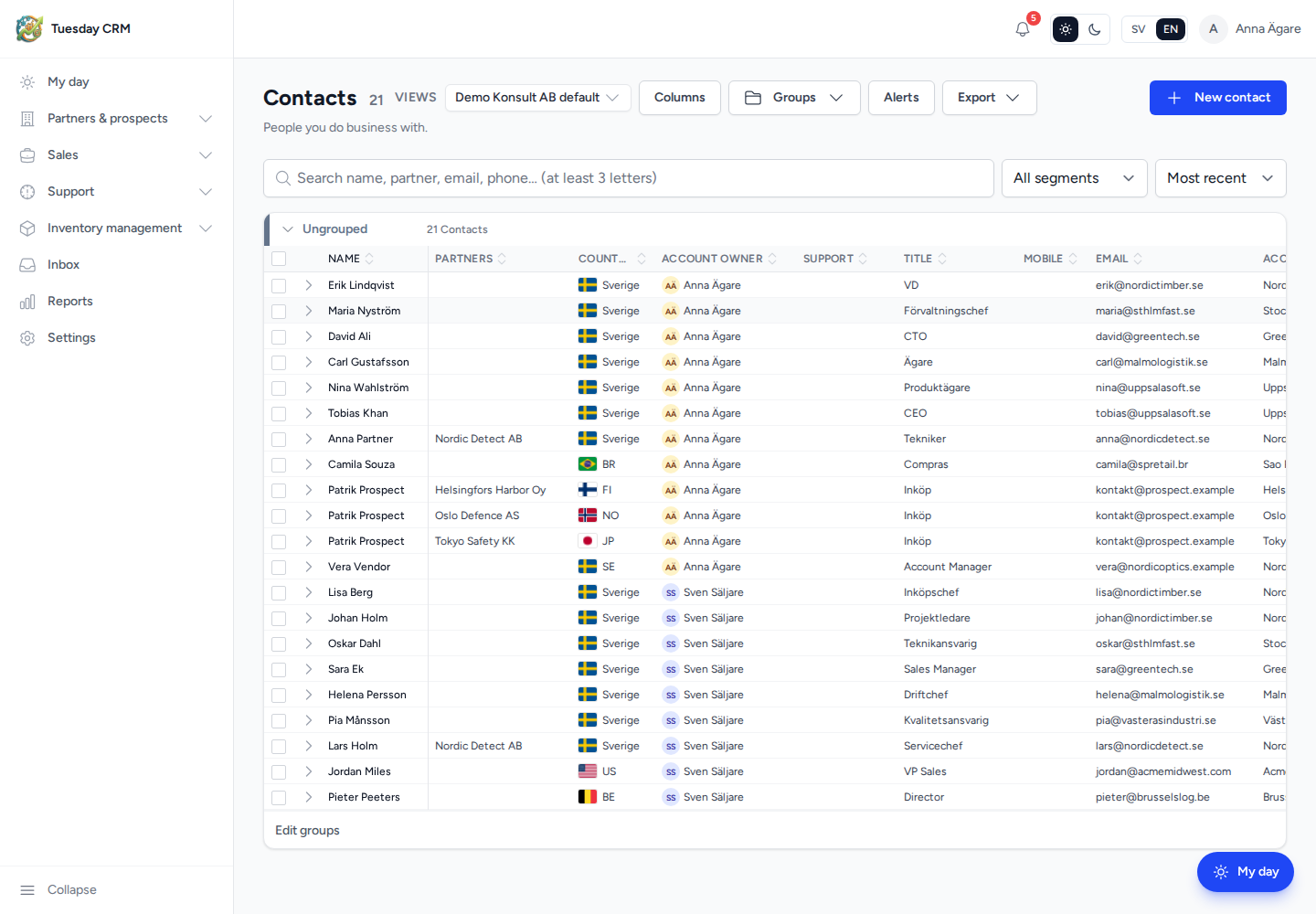
On a phone, Contacts in the bottom bar opens the combined contact list (People you do business with.) with every contact in the company, regardless of where they work. Partner users also get this list as their Contacts menu item.
The contact editor
Click › on a row, or New contact, to open Edit contact. It has three tabs: Updates, Details, and Files (see the record editor).
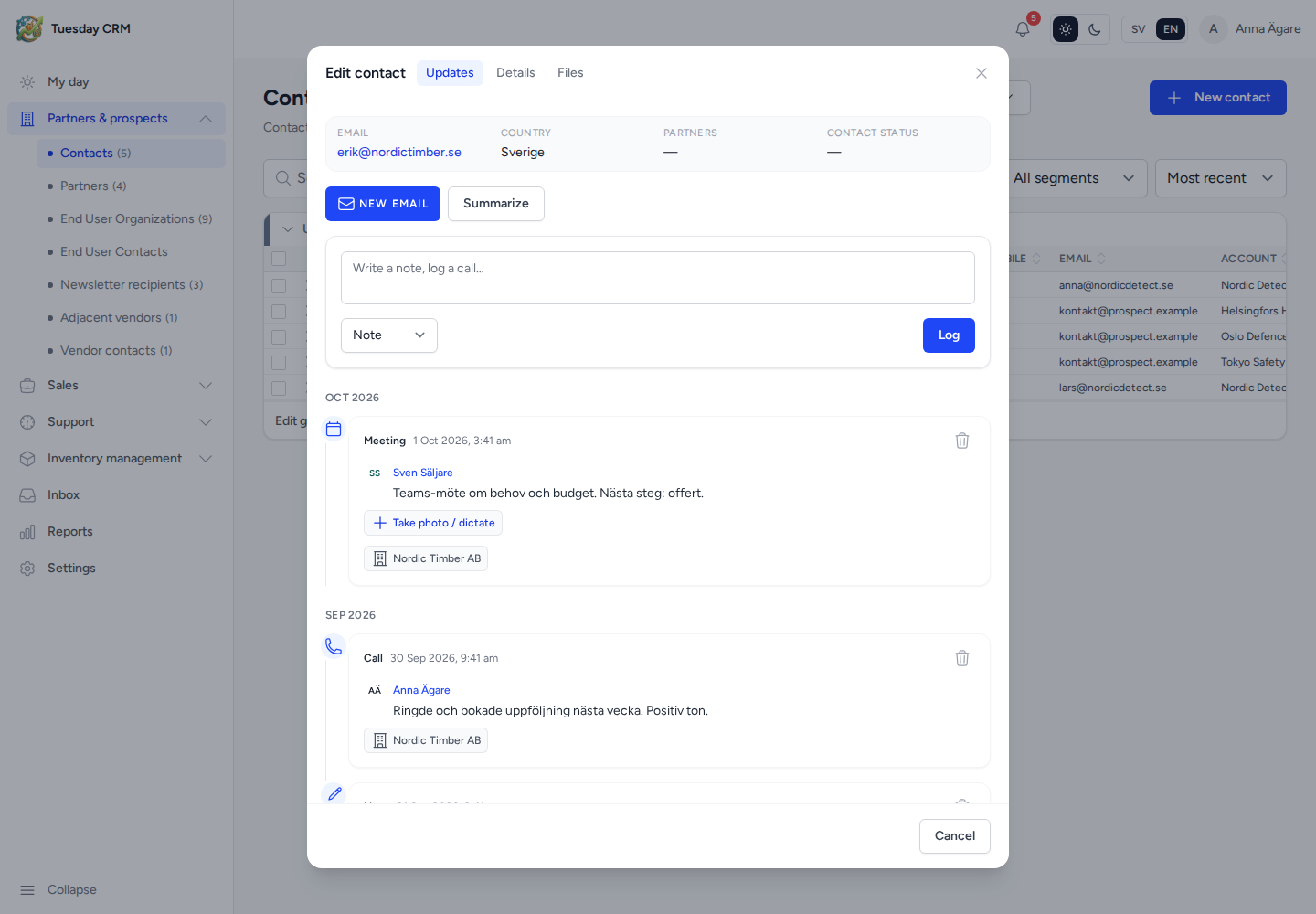
The summary strip at the top shows Email, Country, Partners, and Contact status.
On Updates you log calls, meetings, notes, emails, and tasks about the person. New email sends an email to the contact from your connected mailbox, and the sent email appears on the timeline. Emails that arrive in your connected mailbox from this person are logged here automatically (see Inbox).
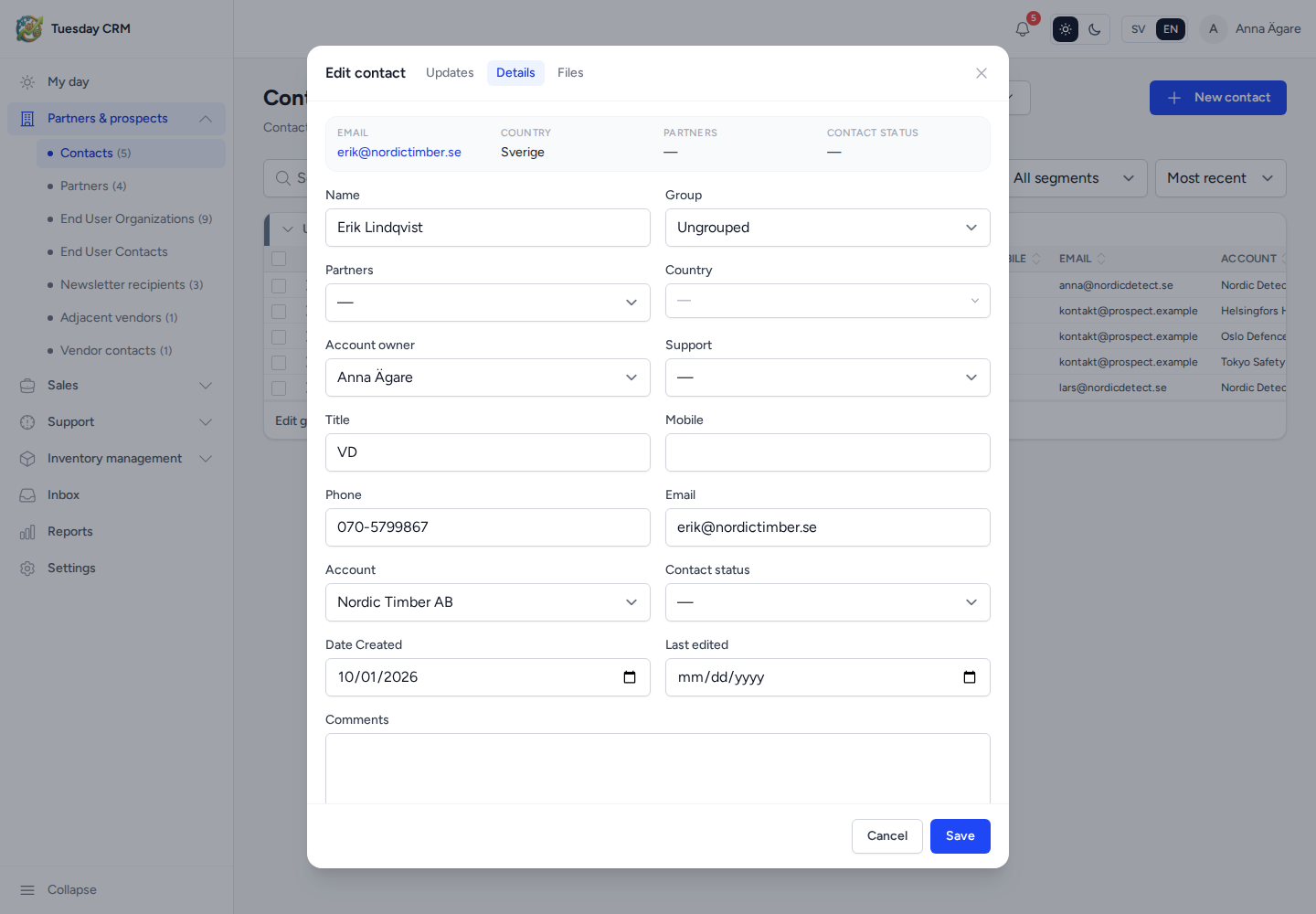
The Details tab has these fields:
| Field | What to enter |
|---|---|
| Name | First and last name |
| Group | Which group on the board the contact belongs to |
| Partners | The partner organization the person works for (for contacts at a partner) |
| Country | Filled from the organization; can be changed |
| Account owner | The user in your company responsible for the relationship |
| Support | The support person responsible for the contact |
| Title | Job title |
| Mobile, Phone, Email | Contact details. The email is used to match incoming emails to the contact. |
| Account | The organization (end-user organization or vendor) the person works for |
| Contact status | Active, Terminated, or Resigned |
| Date Created | When the contact was added |
| Last edited | Set by Tuesday when the contact changes |
| Comments | Free text |
Further down are any custom fields your company has added for contacts, and Segments.
Click Save to store the changes.
Partners
Partners lists your resellers and partners (Resellers and partners who work with your products.). The board has two fixed groups: Partners (signed partners) and Prospects (partners you are still recruiting). Partners whose Rating is Prospect belong in the Prospects group. If some are in the wrong group, a Move Prospect-rated to Prospects button appears and moves them all at once.
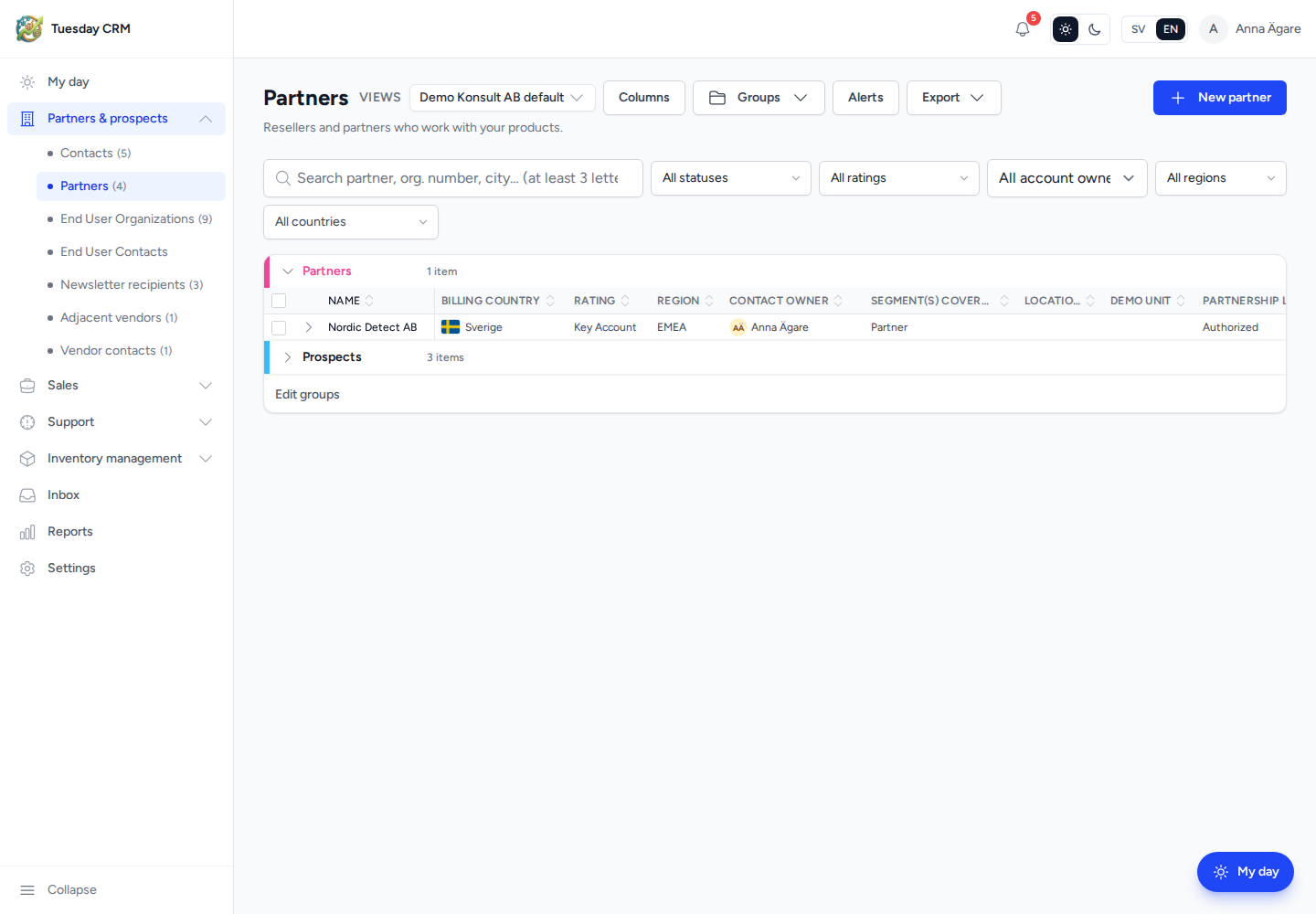
Columns in the default view: Name, Billing Country, Rating, Region, Contact owner, Segment(s) covered, Location, Demo Unit, Partnership level, Current Pipeline Value €, Total Business won €, Website, and Last updated. In Columns you can also show Company name, Contact person, Title, Mobile, Phone, Email, Contacts, Next action, Comments, Files, Marketing, Tags, and Partner specific serial number.
- Rating is how active the partner is: Prospect, Proactive, Reactive, Passive, Key Account, or Terminated.
- Partnership level is Registered or Authorized.
- Current Pipeline Value € and Total Business won € are calculated from the partner's opportunities and cannot be edited.
Filters: search (Search partner, org. number, city…), All statuses, All ratings, All account owners, All regions, and All countries.
Prospects have their own columns, such as Status (New, Contacted, In Progress, Cancelled, Signed), Next action, Contact person, Org. number, City, and Address. Your company can rename and add prospect statuses with Edit labels in the status dropdown.
The 360 tab
The partner editor opens on the 360 tab: everything linked to the partner on one page.
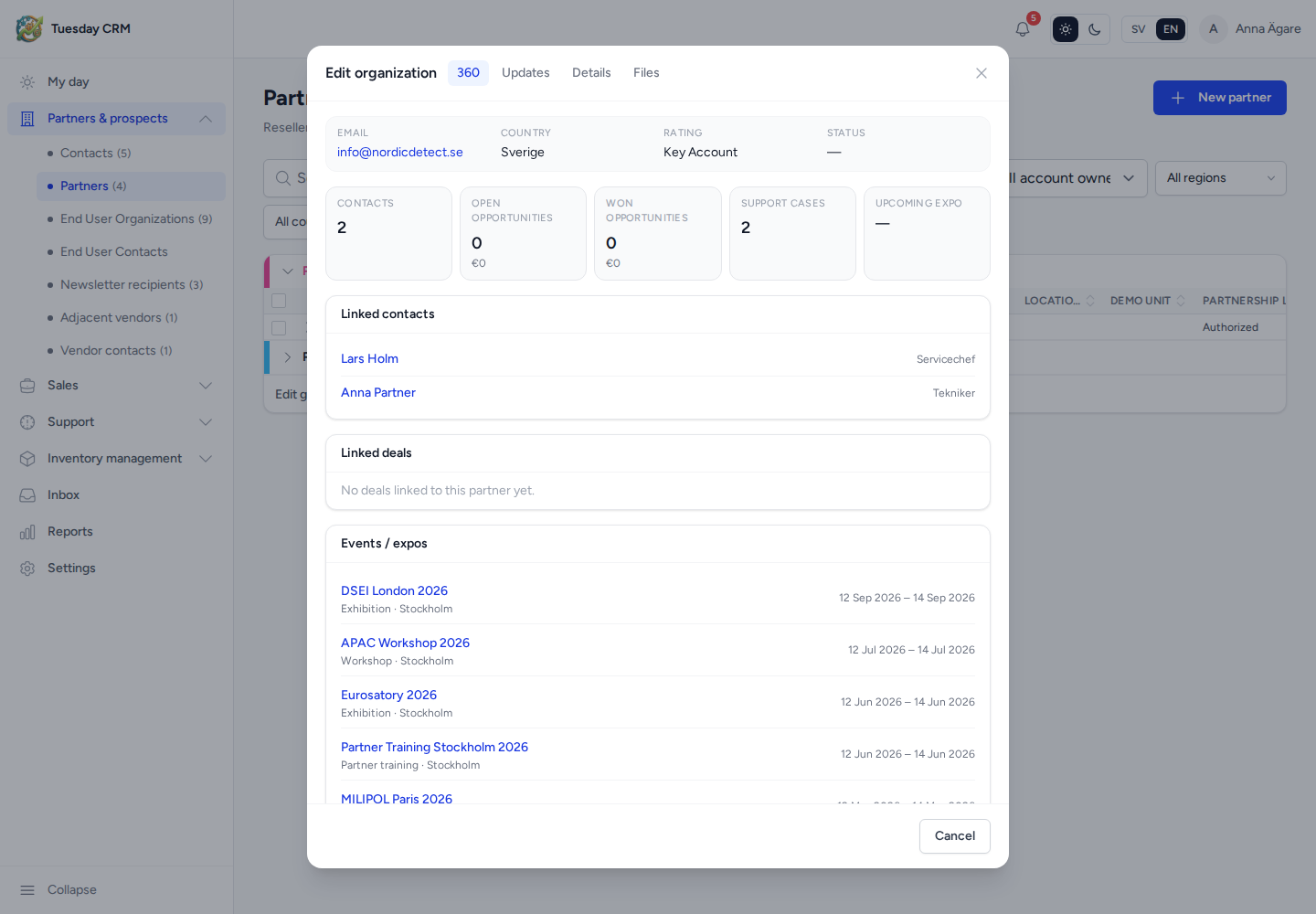
- The summary strip shows Email, Country, Rating, and Status.
- Five key figures: Contacts, Open opportunities (count and value), Won opportunities (count and value), Support cases, and Upcoming expo.
- Linked contacts: the people at the partner, with their title. Click a name to open the contact.
- Linked deals: opportunities where this partner is the partner, split into Current and Past. Click one to open it.
- Linked support cases: tickets from the partner.
- Events / expos: sales activities (exhibitions, workshops, partner trainings, and so on) linked to the partner, with type, place, and dates.
View all next to a list opens the full Contacts, Opportunities, Activities, or Tickets list for the partner.
The other tabs are Updates, Details (all partner fields), and Files.
Send email to partners
Tick one or more partners and click Send email in the selection bar.
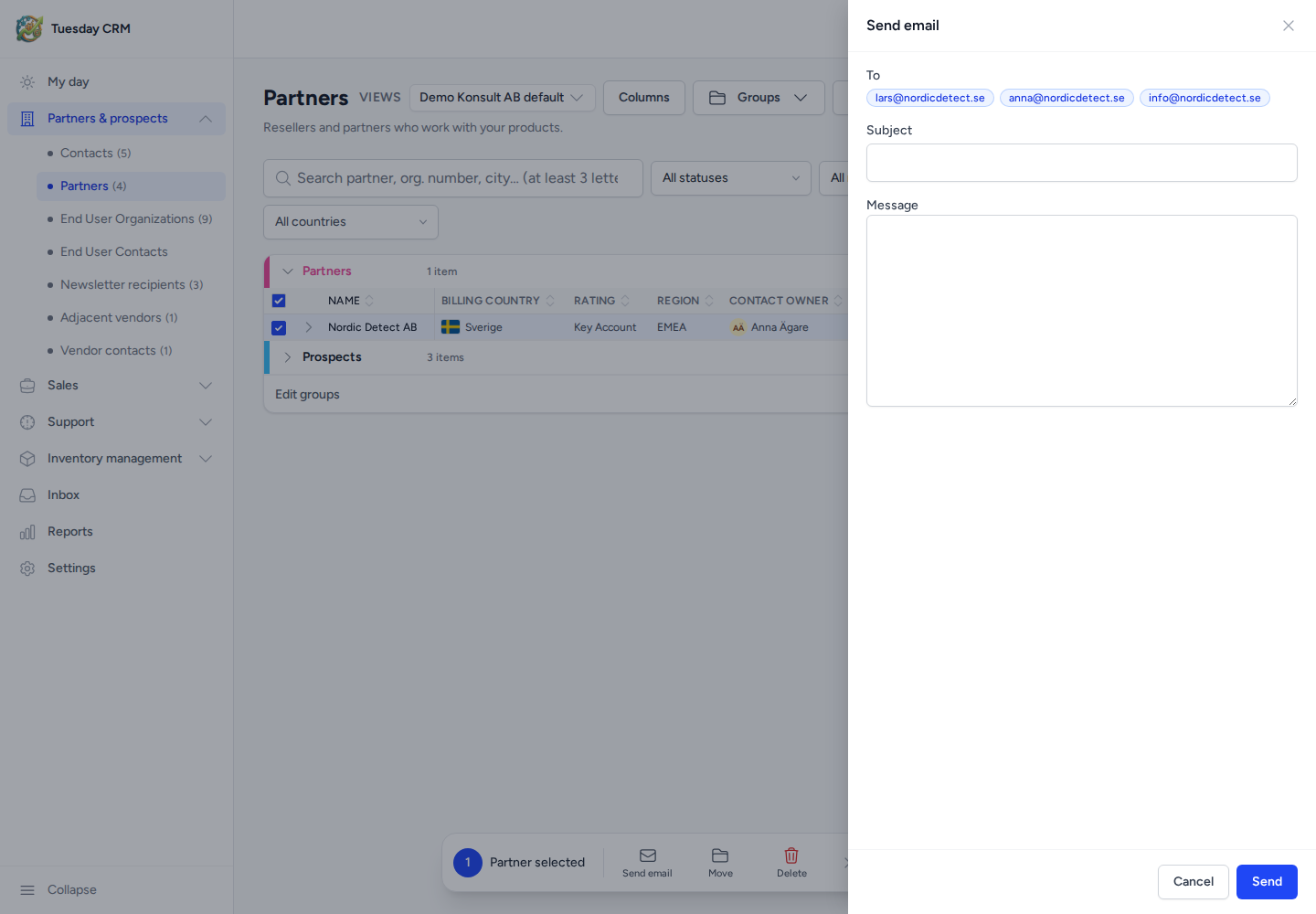
To shows the email addresses Tuesday found for the selected partners: the partner's own address and the addresses of its contacts. To leave someone out, close the panel and change the selection. Write a Subject and a Message (both required) and click Send.
Each address gets its own copy of the email, so recipients do not see each other. The emails are sent from your connected mailbox and logged on the matching contact's timeline. If none of the selected partners has an email address, Tuesday tells you so instead of opening the panel.
End User Organizations
End User Organizations lists the organizations that buy and use your products (Prospective as well as current customer end user organizations.).
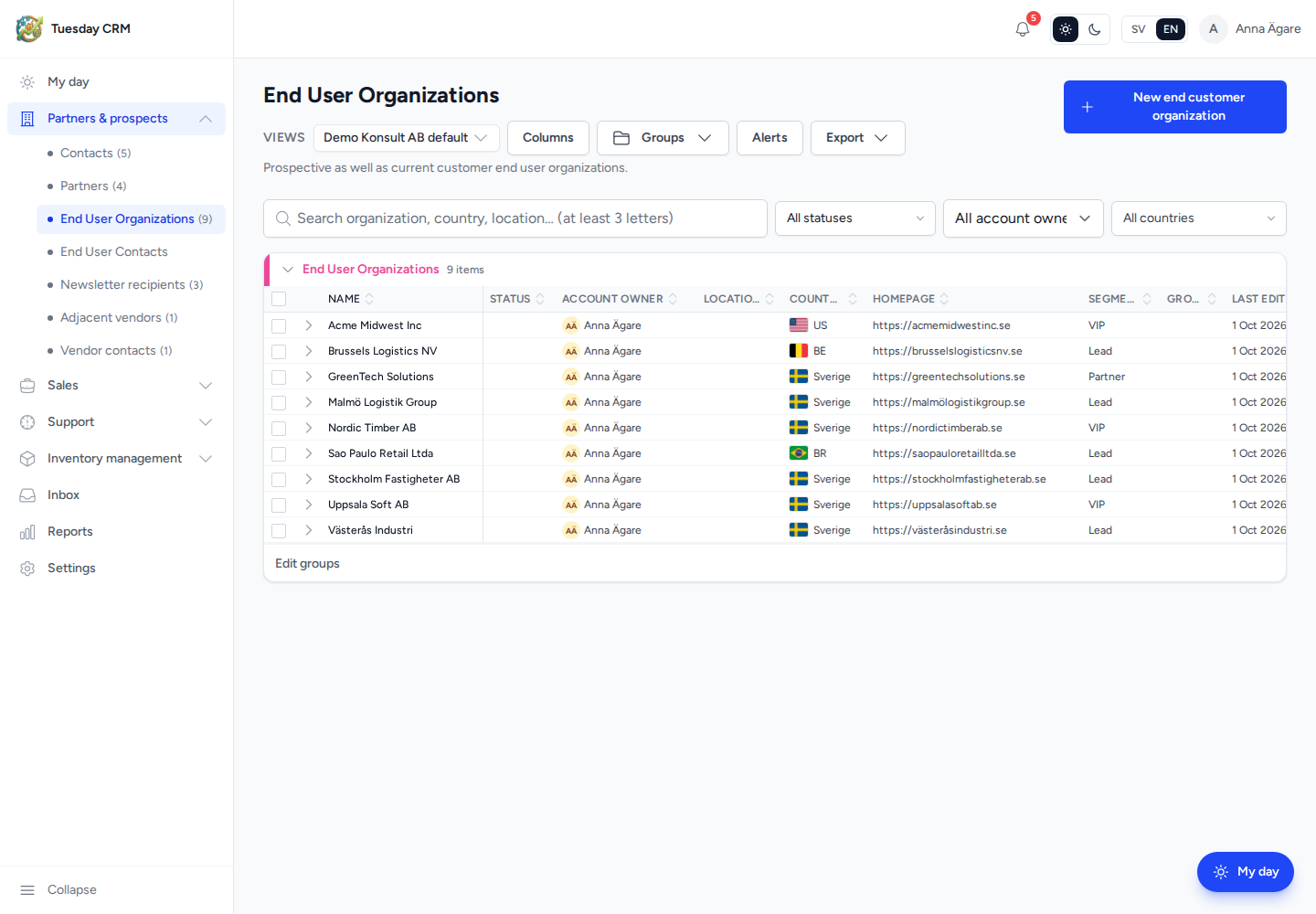
Columns: Name, Status, Account owner, Location, Country, Homepage, Segment, Group, Last edited, and optionally Email, Contacts, and Tags.
Status follows the customer journey: 1 Mail, New lead, In conversation, In quotation, and Purchasing customer.
Filters: search (Search organization, country, location…), All statuses, All account owners, and All countries.
The organization editor
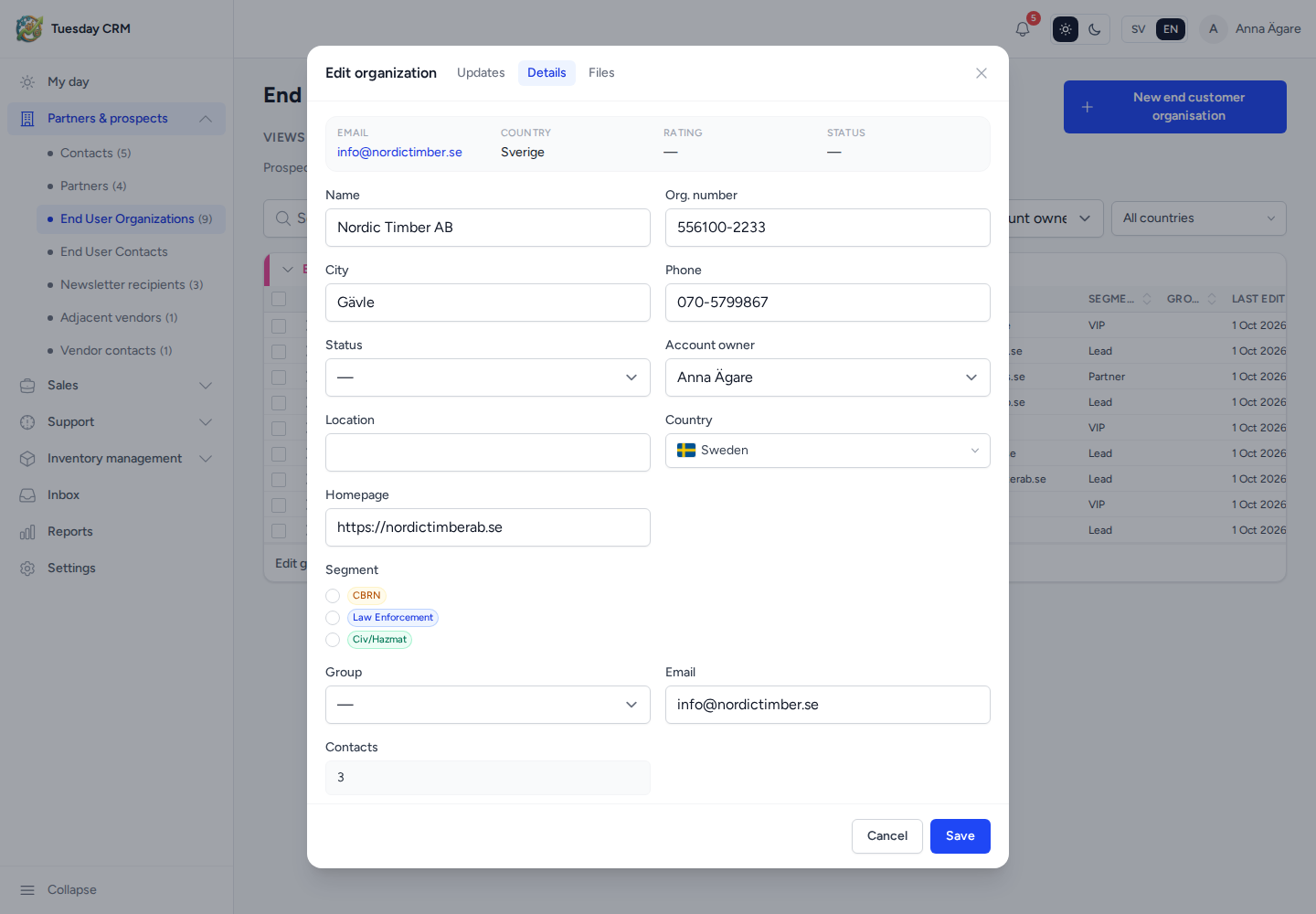
The Details tab has Name, Org. number, City, Phone, Status, Account owner, Location, Country, Homepage, Segment (tick the segments that apply, for example CBRN, Law Enforcement, Civ/Hazmat), Group, Email, and Contacts (the number of people linked; read-only). Custom fields for organizations appear below.
Updates shows the organization's timeline, including entries logged on its contacts and opportunities. Files holds its documents.
End User Contacts
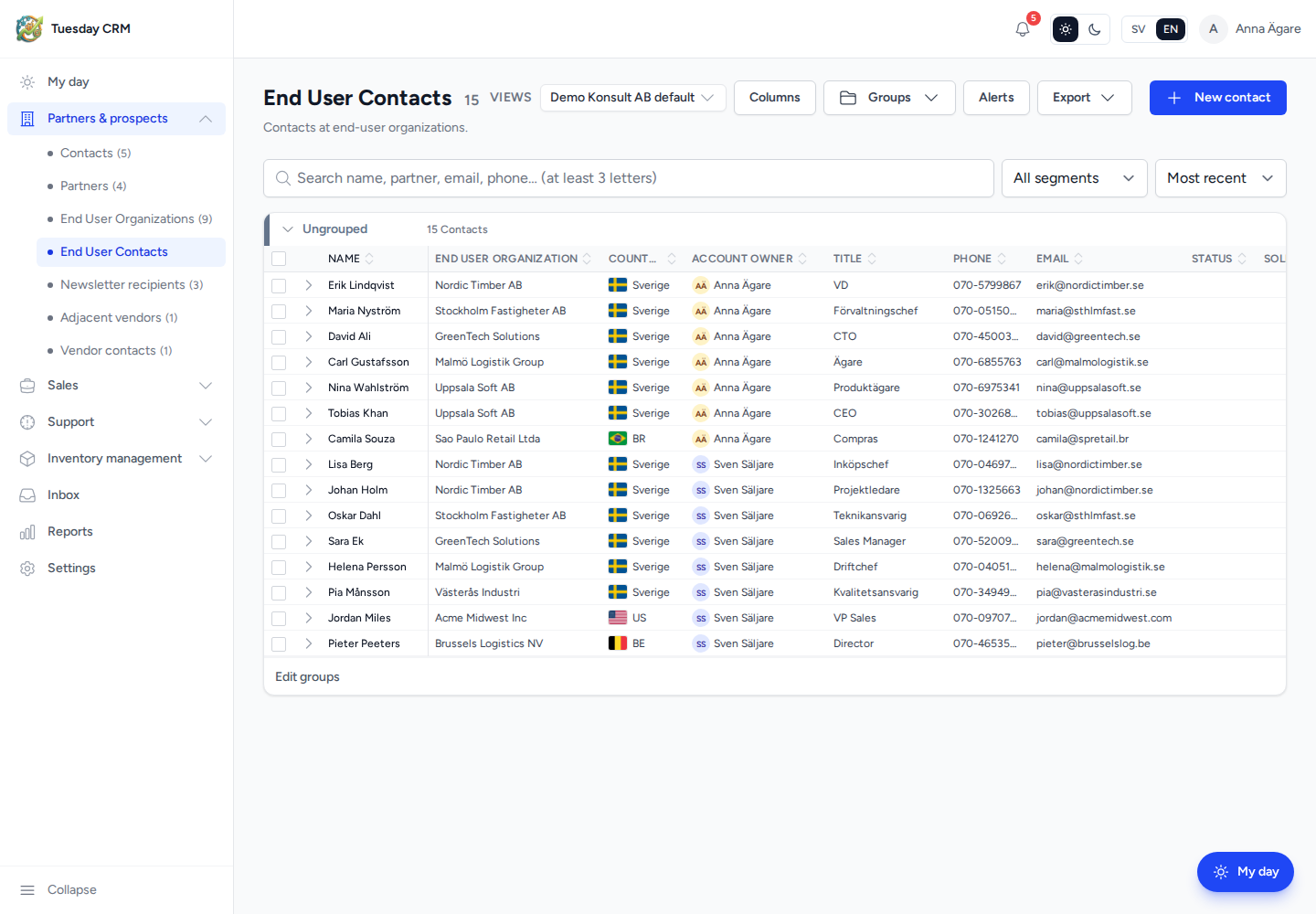
End User Contacts lists people at end-user organizations (Contacts at end-user organizations.). It works exactly like Contacts. The End User Organization column shows where the person works, and the optional Sold instruments column relates the person to the instruments sold to them.
Newsletter recipients
Newsletter recipients is your email list for newsletters (Email list for newsletter recipients.).
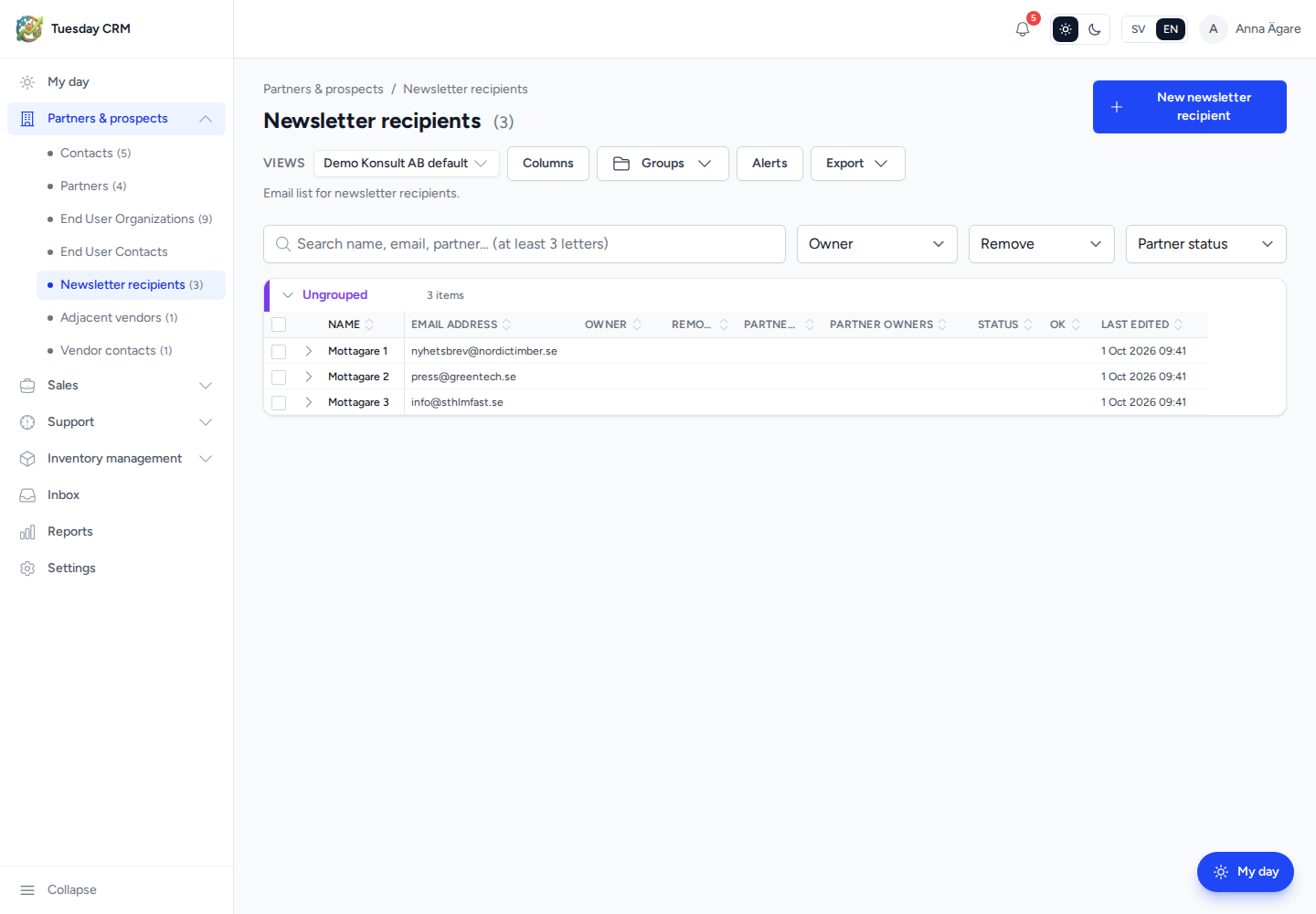
Columns: Name, Email address, Owner, Remove, Partners, Partner owners, Status, OK, and Last edited.
- Remove marks a recipient who should be taken off the list (Marked for removal or Keep). Use it when someone unsubscribes, and delete the row when the newsletter tool has been updated.
- Partners and Partner owners show which partner the recipient belongs to and who owns that partner.
- Status and OK are free columns your team uses to track each recipient, for example whether the address has been checked.
Filters: search (Search name, email, partner…), Owner, Remove, and Partner status.
Use Export → Excel to get the list for your newsletter tool.
Adjacent vendors
Adjacent vendors lists suppliers and other vendors (Adjacent vendors and suppliers.).
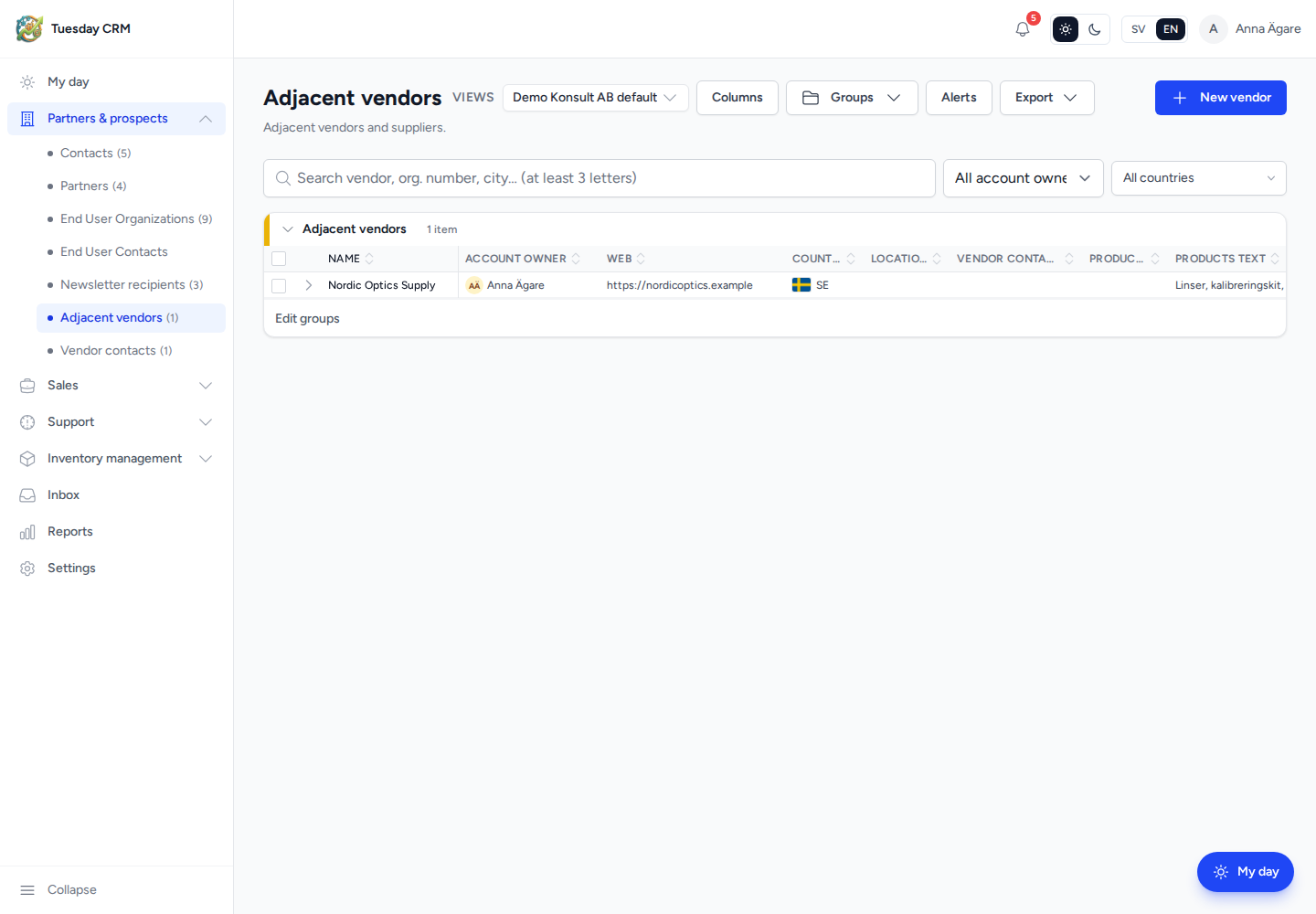
Columns: Name, Account owner, Web, Country, Location, Vendor contacts, Products (linked products from your catalog), Products text (what they supply, in free text), Item ID, and optionally Group, Contacts, and Tags.
Filters: search (Search vendor, org. number, city…), All account owners, and All countries.
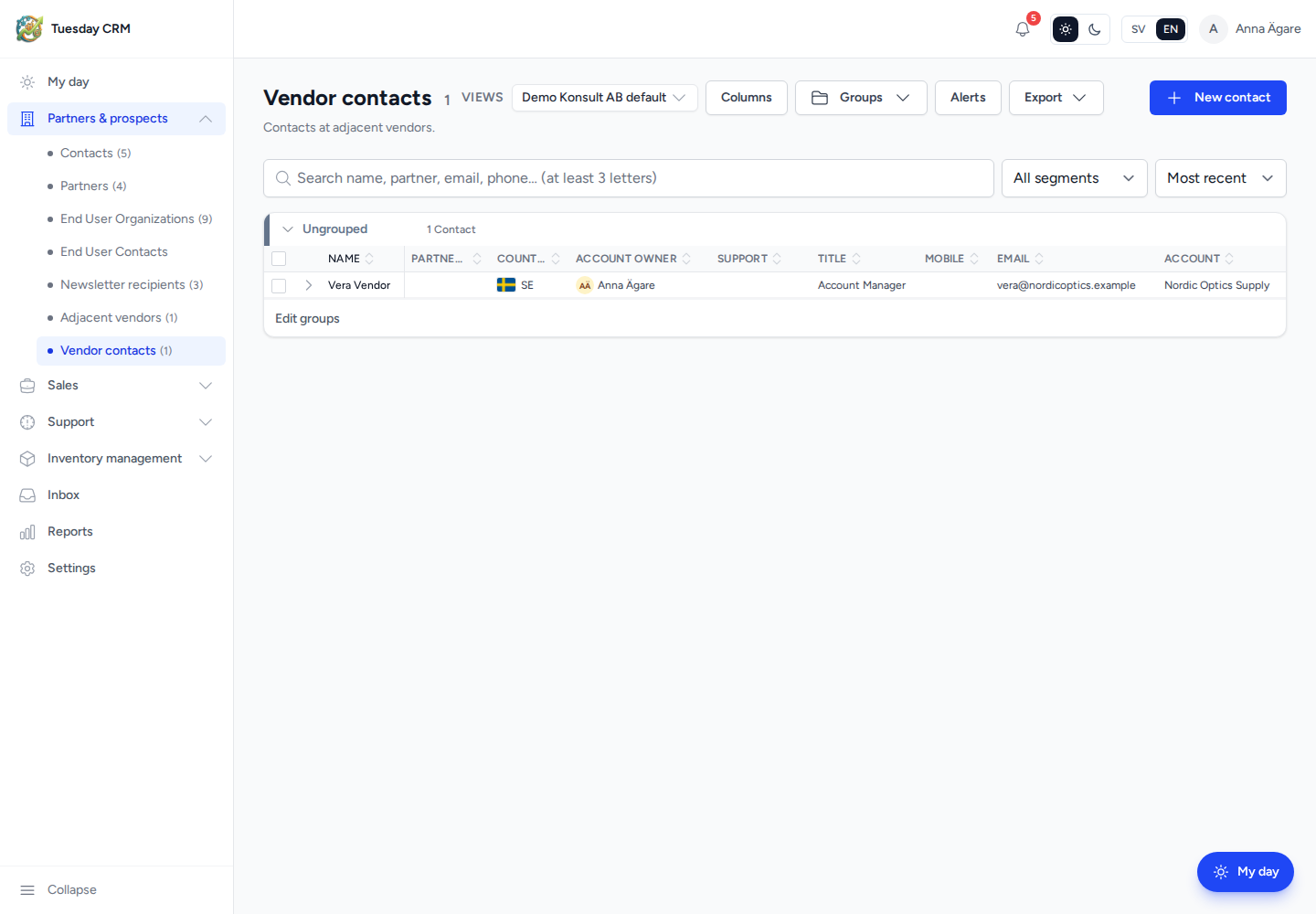
Vendor contacts
Vendor contacts lists people at adjacent vendors (Contacts at adjacent vendors.). It works exactly like Contacts; the Account column shows the vendor.
Segments
Segments (for example CBRN, Law Enforcement, Civ/Hazmat) describe the markets a contact, organization, partner, opportunity, or activity belongs to. They appear as colored chips. The list of segments, their names, and colors are managed in Settings → System fields → Segments. On the records you only pick from that list.
Tips
- Add the organization first, then its contacts, so the contacts can be linked straight away.
- Keep Email filled in on contacts. Incoming emails are matched to contacts by email address.
- Use Account owner consistently. It drives the All account owners filters, the Management follow-up per salesperson, and the visibility of users who see only their own deals.
Next: Sales dashboard.