
Settings
Settings is the company control panel: company details, who is on the team, the pipeline and custom fields, how you sign in, reminders, the sidebar menu, automations, mailbox, data import, and support emails.
Open it from Settings at the bottom of the sidebar, or from the menu under your name in the header. The page subtitle reads Company details, users, custom fields, subscription, and integrations.
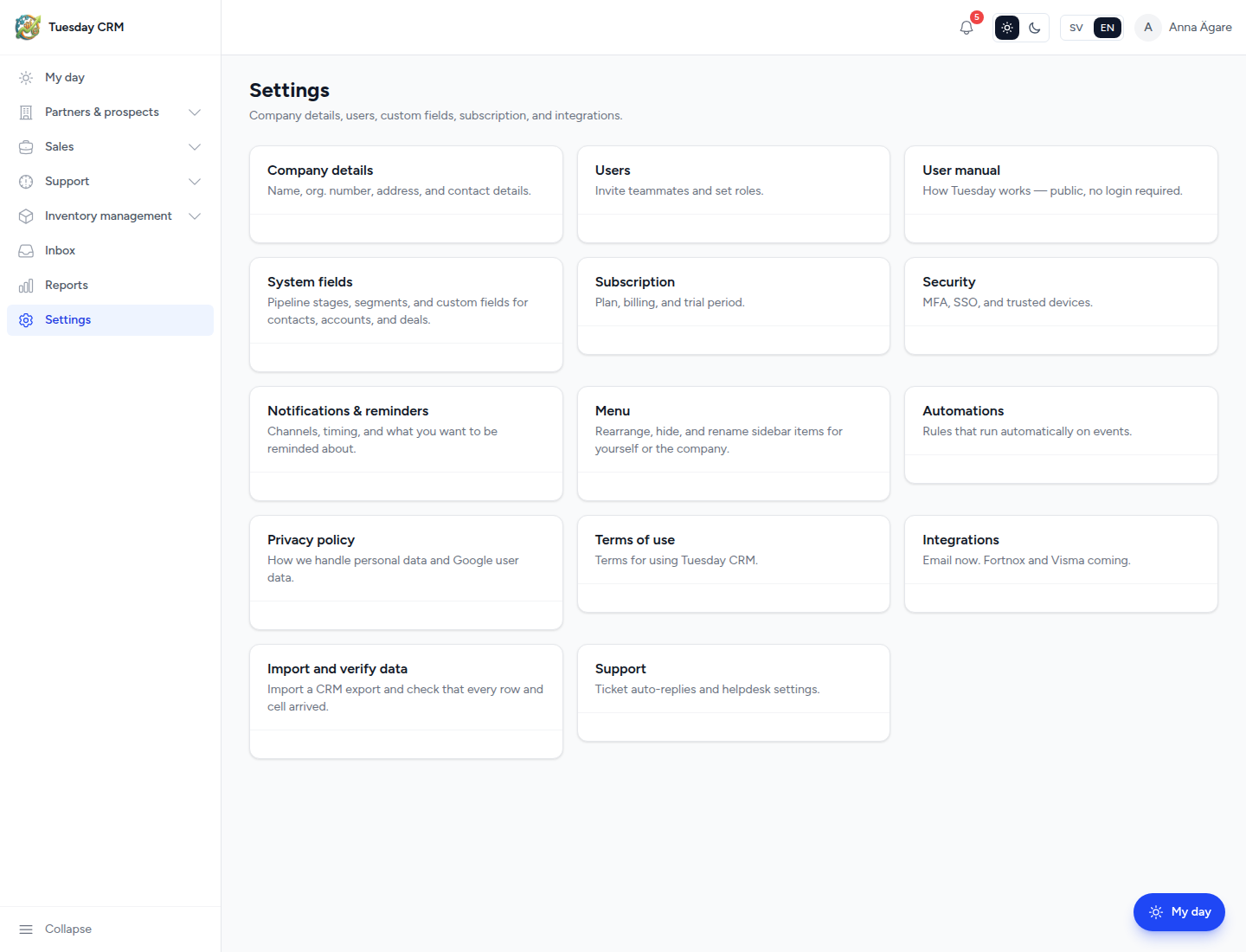
Each card opens one settings page. ← Settings on a sub-page takes you back to the hub. User manual, Privacy policy, and Terms of use open in a new browser tab.
Hub cards
| Card | Card text | Chapter |
|---|---|---|
| Company details | Name, org. number, address, and contact details. | Company details |
| Users | Invite teammates and set roles. | Users |
| User manual | How Tuesday works — public, no login required. Opens this guide. It is always shown. | — |
| System fields | Pipeline stages, segments, and custom fields for contacts, accounts, and deals. | System fields |
| Subscription | Plan, billing, and trial period. | Subscription |
| Security | MFA, SSO, and trusted devices. | Security |
| Notifications & reminders | Channels, timing, and what you want to be reminded about. | Notifications & reminders |
| Menu | Rearrange, hide, and rename sidebar items for yourself or the company. | Menu |
| Automations | Rules that run automatically on events. Shown only if the company plan includes automations. | Automations |
| Privacy policy | How we handle personal data and Google user data. | Privacy policy and terms |
| Terms of use | Terms for using Tuesday CRM. | Privacy policy and terms |
| Integrations | Connect your mailbox via Inbox. | Integrations |
| Import and verify data | Import a CRM export and check that every row and cell arrived. | Import and verify data |
| Support | Ticket auto-replies and helpdesk settings. | Support settings |
The last row of the screenshot — Superadmin, Login log, Database backups, and Generate demo data — is only shown to platform operators. See Platform administration.
Who sees which cards
You need the Settings module to open the hub. If you don't have it, Settings is missing from the sidebar and from the header menu.
| Role | Cards shown |
|---|---|
| CEO and Administrator | Every card. These roles cannot be restricted. |
| Member, Support, Quality Control, and Viewer | By default: Users, User manual, System fields, Notifications & reminders, Menu, Automations, Privacy policy, and Terms of use. |
| Partner | No Settings at all. |
A CEO or Administrator can change the cards for each non-admin user:
- Open Settings → Users.
- Click the gear icon in the teammate's row. The Access panel opens.
- Under Settings menu, tick or untick the cards. Users is always kept (Users must always be able to open Users.). Reset to default returns to the default list.
The same panel also controls modules, dashboard editing, and table defaults. See Users.
Members keep the System fields card even if it is unticked, because Members may manage segments.
Settings or Profile?
Your own name, email, password, email signature, and Delete account are on Profile (header → your name → Profile). The signature is added under messages you send from Tuesday. Click an image in the signature to change its size with the slider or the S, M, L, and Original size buttons. Language (SV / EN) and light or dark theme are switched in the header. Settings holds company-wide choices plus your personal security, reminders, and menu. See Navigating.
When the trial has ended
When the company's trial has expired and no plan is active, users who don't have the Subscription card see The trial period has ended — Ask an administrator to renew the subscription, or log out and try another account. The CEO can still open Subscription and choose a plan. See Subscription.
Next: Platform administration.