
Quick capture and mobile
Quick capture is a single page for getting things into Tuesday fast, typically on a phone between meetings or at an exhibition: a task, a written note, a photo, or a voice note. It also works when you have no connection.
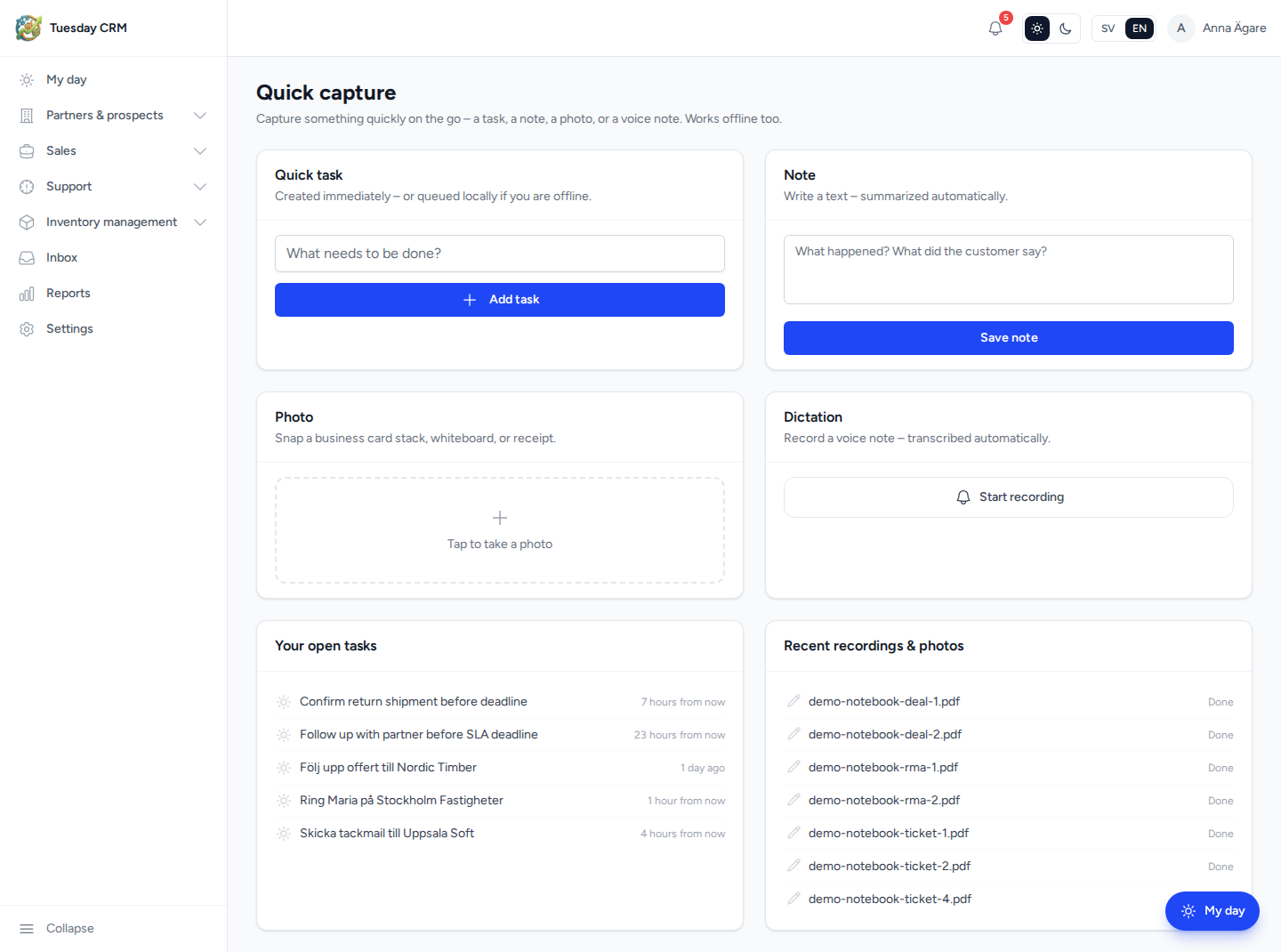
Opening Quick capture
- On a phone, tap the large + in the middle of the bottom bar.
- On any record, click Take photo / dictate on the Files tab or on a timeline entry. Quick capture then opens already linked to that record, and the page says Linked to … with the record name. Everything you capture goes straight onto that record.
The four capture cards
Quick task
Created immediately – or queued locally if you are offline.
Type in What needs to be done? and tap Add task. The task is added to My day without a date and with Normal priority. Open it on My day later to set a date, priority, or connections.
Note
Write a text – summarized automatically.
Type what happened in What happened? What did the customer say? and tap Save note. The note is stored as a document. Tuesday's AI writes a short summary and a list of action items for it, which you see on the Files tab of the record it is linked to.
Photo
Snap a business card stack, whiteboard, or receipt.
Tap Tap to take a photo. On a phone, the camera opens; on a computer, you pick an image file. The photo is uploaded and summarized like a note.
Dictation
Record a voice note – transcribed automatically.
Tap Start recording, allow the browser to use the microphone the first time, speak, and tap Stop recording. The recording is uploaded, transcribed to text, and summarized.
Photos and voice notes are part of the documents feature. If your plan does not include it, the cards say Photos and voice notes are included in a higher plan and link to Subscription.
AI quota
AI summaries and transcriptions count against a monthly quota, shown on the Files tab as AI quota: N/M left this month. When the quota is used up, files are still saved, but without a summary (The AI quota is used up – the file was saved without a summary).
Your open tasks
The Your open tasks card lists your open tasks with how far away their due time is (for example 7 hours from now or 1 day ago). It is a quick check without leaving the page.
Recent recordings & photos
The Recent recordings & photos card lists what you have recently uploaded, with its processing status:
| Status | Meaning |
|---|---|
| Pending / Processing | The file is uploaded and Tuesday is transcribing or summarizing it. The status updates by itself. |
| Done | The summary is ready. |
| Failed | Processing did not succeed. The file itself is still saved. |
| Quota exceeded | Saved without a summary, because the monthly AI quota is used up. |
Linking captures afterwards
If you captured something without opening Quick capture from a record, it ends up under Unlinked uploads (Link a photo, voice note or text to a contact, deal or meeting).
- Click the upload in the list.
- Choose what to link it to: a contact (Choose contact…), a deal (Choose deal…), or a meeting (Choose meeting…).
- Search with Search name, deal or meeting… and pick the record.
- Click Link.
The document then shows on that record's Files tab.
Working offline
If your phone loses its connection, an orange banner appears at the top: You are offline. Quick captures are saved locally and will be sent automatically. While offline:
- Quick task, Note, Photo, and Dictation still work. What you capture is kept in the browser on the device.
- The banner shows how many items are waiting, for example (2 waiting).
- When the connection comes back, the waiting items are sent automatically and the banner disappears.
Do not clear the browser's data for Tuesday while items are waiting, or they are lost.
Tuesday on a phone
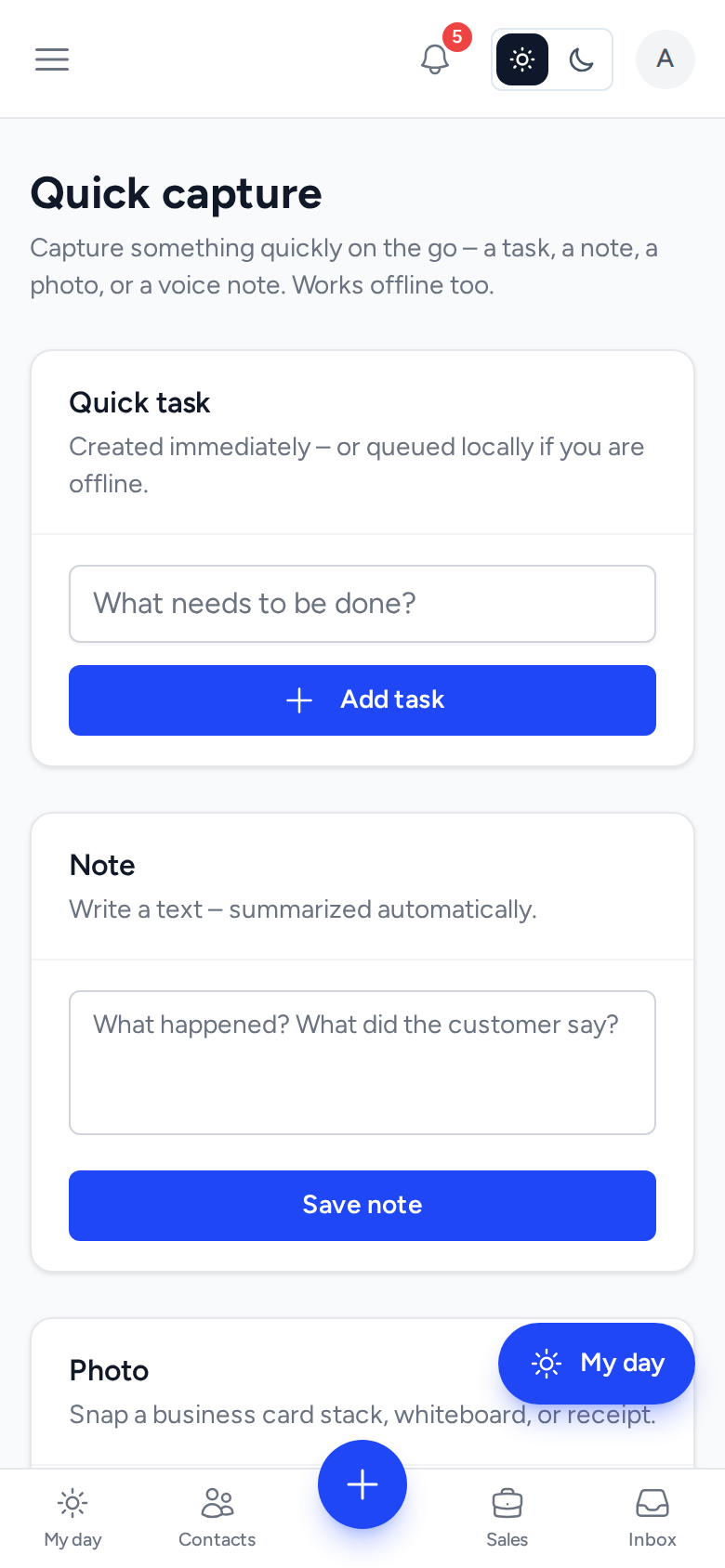
Tuesday works in the phone's browser. For the best experience, install it as an app:
- Android (Chrome): open Tuesday, then tap Install in the header if it is shown, or use the browser menu → Install app / Add to Home screen.
- iPhone and iPad (Safari): tap the Share button → Add to Home Screen.
The installed app opens full screen with its own icon. It is the same Tuesday, with the same login and data.
On a phone:
- The ☰ button at the top left opens the full menu.
- The bottom bar has My day, Contacts, + (Quick capture), Sales, and Inbox. If you do not have one of those modules, the next one you do have takes its place (for example Support).
- Tables scroll sideways, with the first column fixed.
- Record editors fill the screen.
Next: Partners & prospects.