
QC Tracking
Support → QC Tracking is the quality-control log: one row per tested unit, identified by its serial number. It records when the unit came in, when it was tested, whether it passed, and — if it failed — why, who owns the fault, and what is being done about it. Quality control tracking for devices.
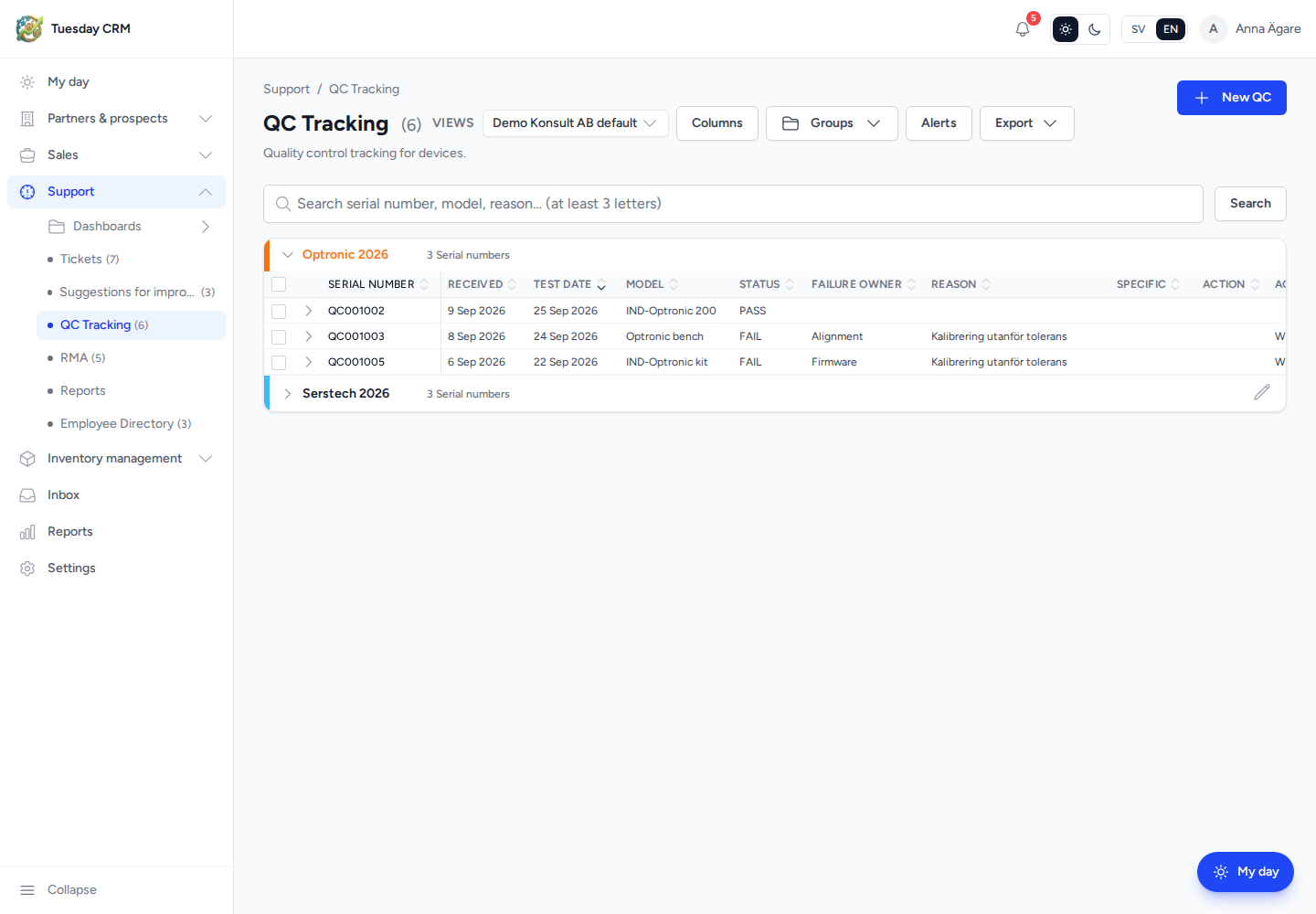
The page uses the shared table controls — Views, Columns, Groups, Alerts, Export, double-click editing, and the selection bar. See Tables, views, and groups. The numbers on the QC dashboards are calculated from this list.
Header and search
- + New QC opens an empty QC record.
- Search — Search serial number, model, reason… (at least 3 letters). Type and press Enter or click Search. The search also matches partner-specific serial numbers.
- Clicking a Model or a Status value in the table filters the list to that value. Remove the filter with × on the chip above the table.
Groups
Rows are grouped by product line and year, for example Optronic 2026 and Serstech 2026. Each group header shows how many serial numbers it holds. The QC Tracking Optronics dashboard counts the Optronic groups and the QC Tracking Serstech dashboard counts the Serstech groups, so keep the brand name at the start of the group name when you create a new year's group with Groups → Edit groups. A ticket or an RMA with the same serial number — or the same partner-specific serial number — shows those rows on its QC history card, and the ticket list can filter by who did the QC, the year in the group name, and PASS or FAIL.
The group name is also what tickets and RMAs show in their Produced column (see Tickets → Produced), so pick group names you want to see in statistics. When you rename a group with Groups → Edit groups, every ticket and RMA showing the old name gets the new one at once. Moving a serial number to another group, or fixing a mistyped serial number here, updates the tickets and RMAs with that serial number too.
Columns
| Column | Meaning |
|---|---|
| Serial number | The unit's serial number. Required. |
| Received | When the unit arrived for QC. |
| Test date | When it was tested. |
| Model | The instrument model. |
| Status | The QC result: PASS or FAIL (or another result your company uses). |
| Failure owner | For a failed unit, the area responsible — for example Alignment, Firmware, or Hardware. |
| Reason | Why the unit failed, for example Kalibrering utanför tolerans (calibration out of tolerance). |
| Specific | Details of the failure. |
| Action | What is done to fix it. |
| Action status | Where the action stands, for example Working on it. |
| Risk management | The customer impact of the failure: Low, Medium, or High. |
| Partner | The partner the unit is for, if any. |
| Partner specific serial number | The partner's own number for the unit. Shown only for partners that use their own serial numbers. |
| Notes | Anything else. |
How the fields feed the QC dashboards
| Dashboard chart | Built from |
|---|---|
| First-pass charts (FYP / FPY), QC Outcome | Status (PASS / FAIL) |
| Overall QC Fail Drivers, QC fail drivers | Reason of failed units |
| Customer Impact (Detected in QC) | Risk management of failed units — write Low, Medium, or High (or Låg, Medel, Hög) |
| Fail handling status | Action status of failed units |
| Failure Owner | Failure owner |
| QC per day | Test date |
The QC editor
Click a serial number, or + New QC, to open the editor. It has the tabs Updates, Details, and Files.
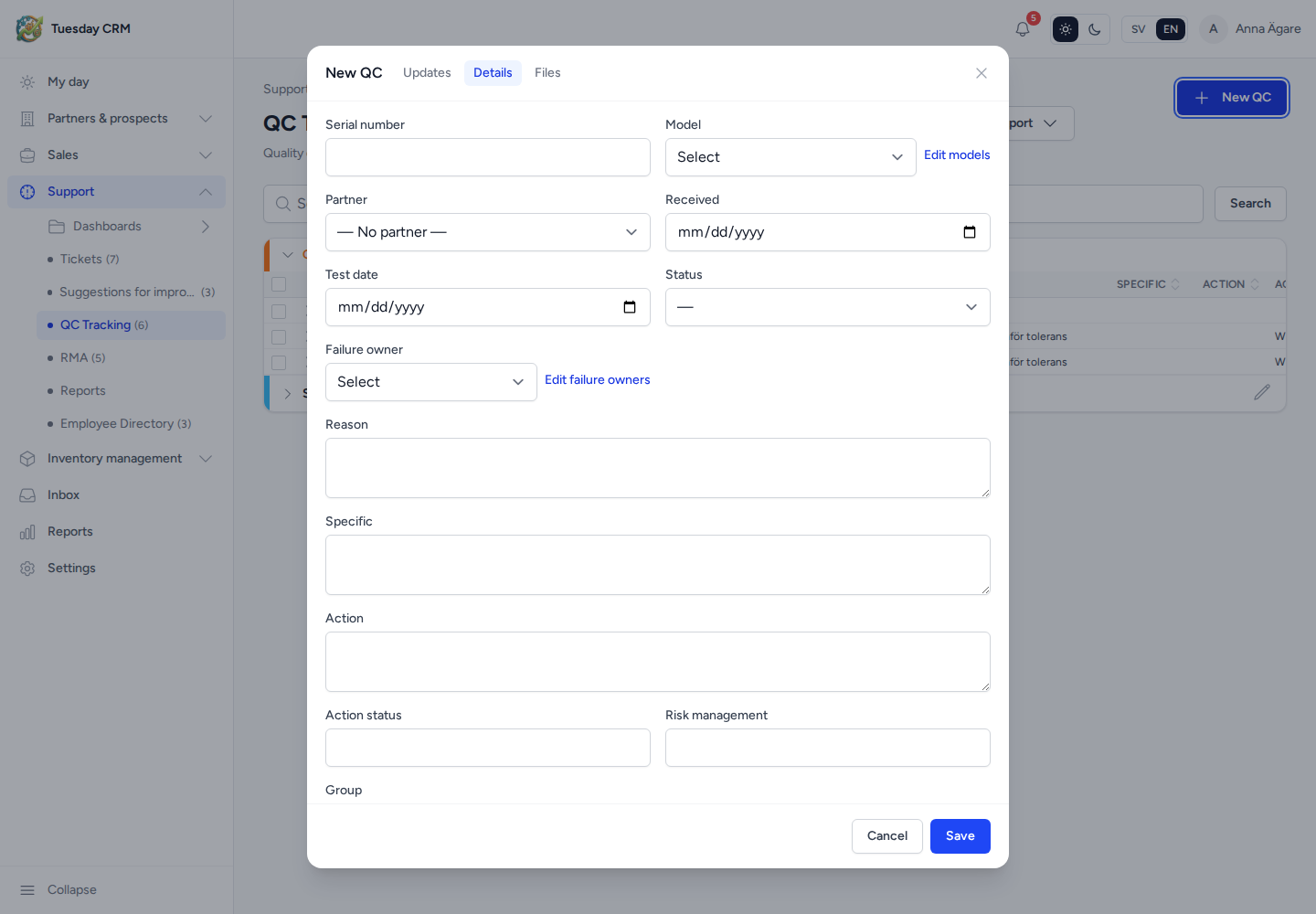
On Details:
- Serial number is required.
- Model and Failure owner are pick lists. Edit models and Edit failure owners next to them let you add, rename, or remove the choices, so everyone uses the same spelling — which keeps the dashboard charts clean.
- Partner — pick one, or leave — No partner —.
- Received and Test date are dates.
- Status — PASS, FAIL, or another result already in use.
- Reason, Specific, Action, Action status, Risk management, Group, and Notes.
Click Save, or Cancel to close without saving. Updates holds notes about the unit (for example the result of a re-test), and Files holds test reports and photos.
Typical flow
- A unit arrives: click + New QC, enter the Serial number, Model, and Received date, and choose the right Group.
- After the test, set Test date and Status.
- For a FAIL, fill in Failure owner, Reason, Specific, and Action, and keep Action status up to date until the unit passes.
- Attach the test report on Files.
Next: RMA.